> ## Documentation Index
> Fetch the complete documentation index at: https://docs.pawapay.io/llms.txt
> Use this file to discover all available pages before exploring further.
# Play around with our API using Postman
The PawaPay API enables you to pay and get paid with mobile money in Sub-Saharan Africa.
## Let's play around with the API in Postman
[  ](https://app.getpostman.com/run-collection/25129489-56cbaf62-56c2-4734-bf1f-f61d369cc9e3?action=collection%2Ffork\&source=rip_markdown\&collection-url=entityId%3D25129489-56cbaf62-56c2-4734-bf1f-f61d369cc9e3%26entityType%3Dcollection%26workspaceId%3D8c3e7775-3da5-4bab-8a8c-ffb331ccfe27)
If you haven't done so already, [create an account](https://dashboard.sandbox.pawapay.io/#/merchant-signup) in our sandbox.
It only takes a few minutes and you can start testing our API immediately.
Now go to [Developers > API tokens](https://dashboard.sandbox.pawapay.io/#/system/api-token) and generate an API token.
](https://app.getpostman.com/run-collection/25129489-56cbaf62-56c2-4734-bf1f-f61d369cc9e3?action=collection%2Ffork\&source=rip_markdown\&collection-url=entityId%3D25129489-56cbaf62-56c2-4734-bf1f-f61d369cc9e3%26entityType%3Dcollection%26workspaceId%3D8c3e7775-3da5-4bab-8a8c-ffb331ccfe27)
If you haven't done so already, [create an account](https://dashboard.sandbox.pawapay.io/#/merchant-signup) in our sandbox.
It only takes a few minutes and you can start testing our API immediately.
Now go to [Developers > API tokens](https://dashboard.sandbox.pawapay.io/#/system/api-token) and generate an API token.
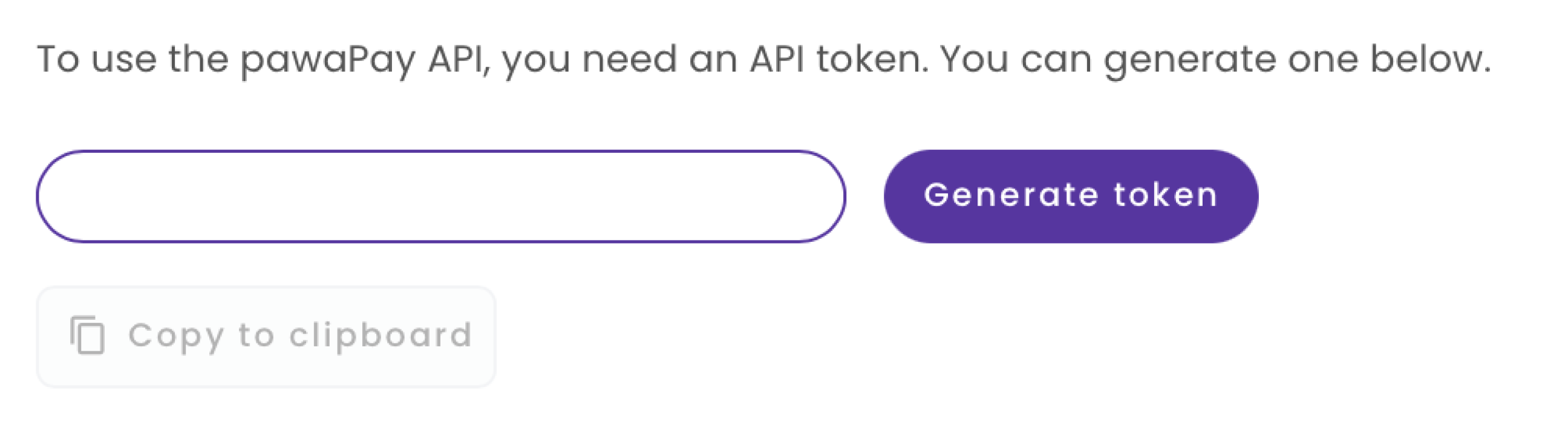 Please store it immediately. We do not store the tokens in PawaPay for security reasons.
1. Choose "Environments" from the sidebar in Postman and select the little "+" button.
2. Name the environment as you please. For example, "PawaPay sandbox".
3. Add the following variables into your environment:
| Variable | Value |
| -------- | ---------------------------------------------------------------- |
| apiToken | Paste the token you just generated as the value |
| baseUrl | [https://api.sandbox.pawapay.io](https://api.sandbox.pawapay.io) |
4. Remember to save your changes.
5. Choose the newly created environment from the environment dropdown in the upper right corner.
You can now start sending requests to the PawaPay API in the sandbox. Try "Initiate deposit" for example.
And explore our API reference to learn more about:
Find out how to get paid.
Find out how to pay someone.
Find out how to refund someone's payment.
Find out what's available on your account and all the parameters you need to pay and get paid.
...and much more.
## Want to test callbacks with Postman as well?
The PawaPay API is asynchronous.
The fastest way to find out about the final status of a payment is through [callbacks](/v2/docs/what_to_know#callbacks).
Let's configure those as well so you can see the whole flow in Postman.
1. Choose "Mock servers" from the sidebar and select the little "+" button.
2. Choose "Select an existing collection".
3. Select the "PawaPay Merchant API" as the collection to mock.
4. Name the server as you please. For example, "PawaPay sandbox".
5. Select "Create Mock Server".
6. Copy the mock server URL.
Sign in to the sandbox dashboard and go to [Developers > Callback URLs](https://dashboard.sandbox.pawapay.io/#/system/callback-url).
Select "Edit" and paste the callback URL you copied from Postman into the input boxes.
Please store it immediately. We do not store the tokens in PawaPay for security reasons.
1. Choose "Environments" from the sidebar in Postman and select the little "+" button.
2. Name the environment as you please. For example, "PawaPay sandbox".
3. Add the following variables into your environment:
| Variable | Value |
| -------- | ---------------------------------------------------------------- |
| apiToken | Paste the token you just generated as the value |
| baseUrl | [https://api.sandbox.pawapay.io](https://api.sandbox.pawapay.io) |
4. Remember to save your changes.
5. Choose the newly created environment from the environment dropdown in the upper right corner.
You can now start sending requests to the PawaPay API in the sandbox. Try "Initiate deposit" for example.
And explore our API reference to learn more about:
Find out how to get paid.
Find out how to pay someone.
Find out how to refund someone's payment.
Find out what's available on your account and all the parameters you need to pay and get paid.
...and much more.
## Want to test callbacks with Postman as well?
The PawaPay API is asynchronous.
The fastest way to find out about the final status of a payment is through [callbacks](/v2/docs/what_to_know#callbacks).
Let's configure those as well so you can see the whole flow in Postman.
1. Choose "Mock servers" from the sidebar and select the little "+" button.
2. Choose "Select an existing collection".
3. Select the "PawaPay Merchant API" as the collection to mock.
4. Name the server as you please. For example, "PawaPay sandbox".
5. Select "Create Mock Server".
6. Copy the mock server URL.
Sign in to the sandbox dashboard and go to [Developers > Callback URLs](https://dashboard.sandbox.pawapay.io/#/system/callback-url).
Select "Edit" and paste the callback URL you copied from Postman into the input boxes.
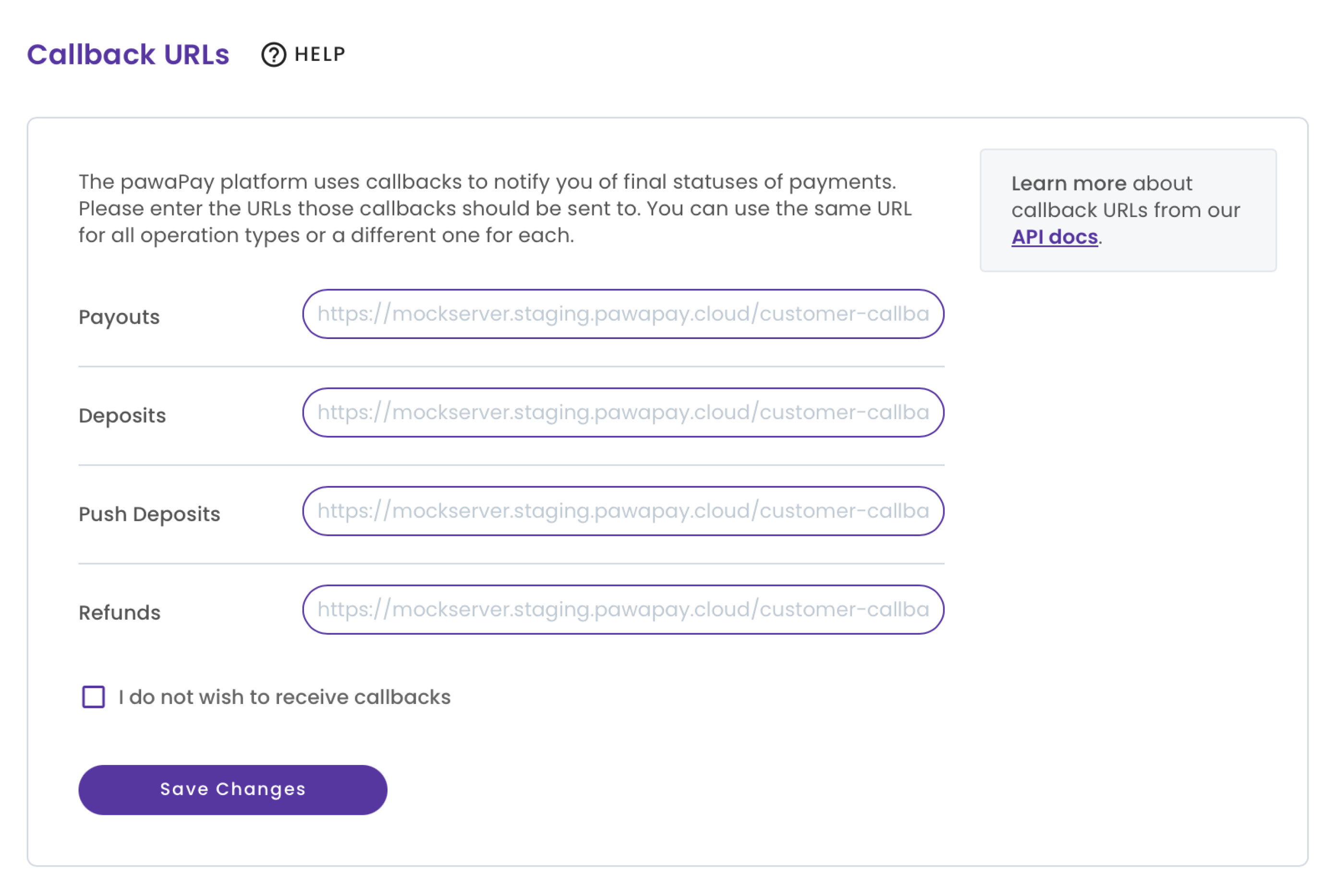 Once configured for all your flows, select "Save Changes".
You can now start sending requests to the PawaPay API in the sandbox.
You will see the callbacks in the Mock servers tab when clicking on the mock server you just created.
Don't forget to click "Refresh logs" after initiating a payment.
## What to do next?
Check out the guides we have for different payment flows.
You can test them in Postman as you go through them.
Step by step guide on how to get paid by your customers.
Step by step on how to pay your customers.
Sometimes you need to refund. Follow this guide to refund your customers.
Find out how to get paid, with an out-of-the-box payment experience.
Once configured for all your flows, select "Save Changes".
You can now start sending requests to the PawaPay API in the sandbox.
You will see the callbacks in the Mock servers tab when clicking on the mock server you just created.
Don't forget to click "Refresh logs" after initiating a payment.
## What to do next?
Check out the guides we have for different payment flows.
You can test them in Postman as you go through them.
Step by step guide on how to get paid by your customers.
Step by step on how to pay your customers.
Sometimes you need to refund. Follow this guide to refund your customers.
Find out how to get paid, with an out-of-the-box payment experience.