> ## Documentation Index
> Fetch the complete documentation index at: https://docs.pawapay.io/llms.txt
> Use this file to discover all available pages before exploring further.
# Checkouts
Checkouts let you forward your customer to a hosted payment page on PawaPay to pay you, and collect the payment through a single checkout reference.
A checkout is the single reference for the whole payment. If a payment fails, the customer can retry within the same checkout — PawaPay keeps track of every attempt for you, so you only ever work with the one checkout. At most one attempt can finish successfully.
If you haven't already, check out the following information to set you up for success with this guide.
Understand the mobile money considerations that affect redirect-based payment flows.
Configure API tokens and callbacks before building your checkout integration.
## How is this different from the Payment Page?
Both the [Payment Page](/v2/docs/payment_page) and checkouts give your customers a hosted, redirect-based payment experience, so a single API call and a redirect is all you need to get paid.
The difference is the level of control and tracking:
| | Payment Page | Checkout |
| ----------------------------------- | -------------------------------------------------------------------------- | ------------------------------------------------------------------------------------------------- |
| Hosted, redirect-based experience | Yes | Yes |
| Customer can retry a failed payment | No — you create a new payment page with a new `depositId` for each attempt | Yes — the customer retries within the same checkout, and PawaPay tracks the attempts for you |
| Lifecycle | Follows the [deposit](/v2/docs/deposits) | The checkout has **its own lifecycle** with its own statuses and callbacks |
| Explicit expiry control | Fixed 15-minute session | Configurable `expiresAfter` and an [expire](/v2/api-reference/checkouts/expire-checkout) endpoint |
Use a checkout when you want a single reference for the whole payment — including any retries the customer makes — and control over when the checkout expires.
## What does it look like
When you create a checkout you receive a `redirectUrl`. You forward your customer to that hosted payment page to pay you. It is optimised for mobile money:
* A user experience for your customers that is optimised for mobile money.
* Responsive design that works on desktop and mobile.
* Low code integration supporting all countries and providers.
* The fields shown adapt to how you configure the checkout (see [Different ways to use a checkout](#different-ways-to-use-a-checkout)).
With just a single API call and a redirect, the customer can pay you.
The customer reviews the payment and chooses or confirms the wallet to pay from.
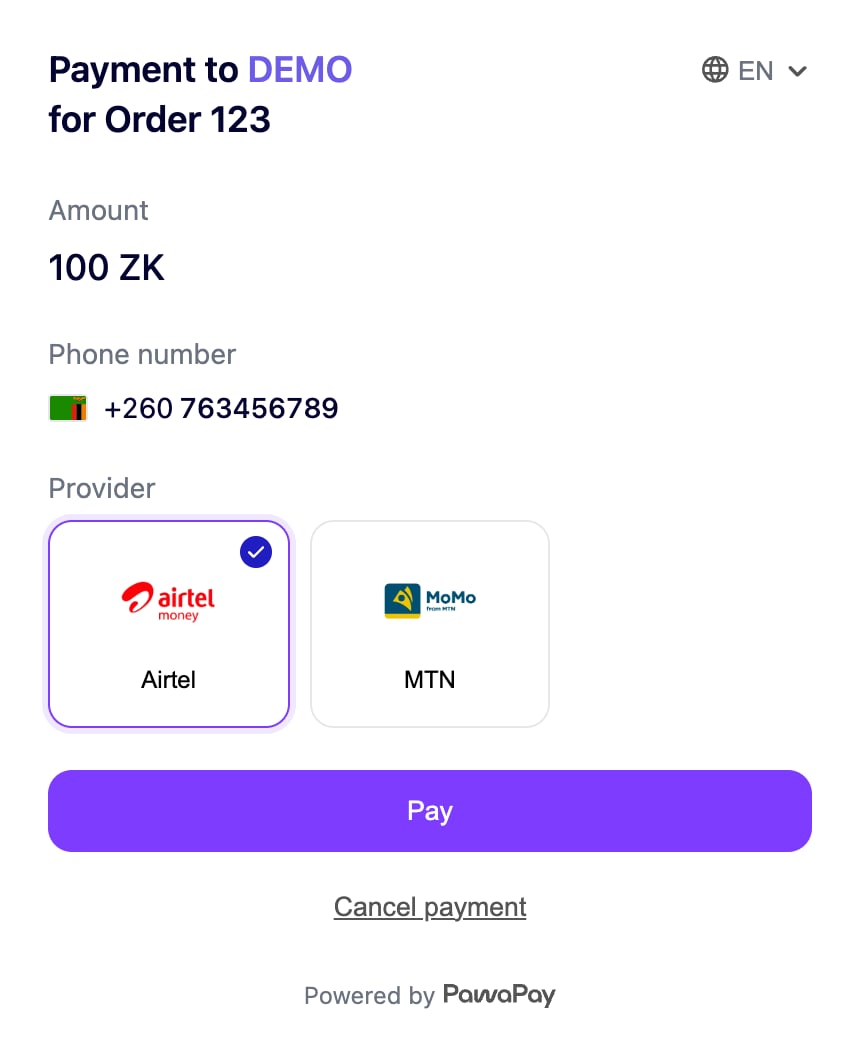 For most providers the customer then authorises the payment with a PIN prompt on their phone. The page shows the exact steps for the provider being used.
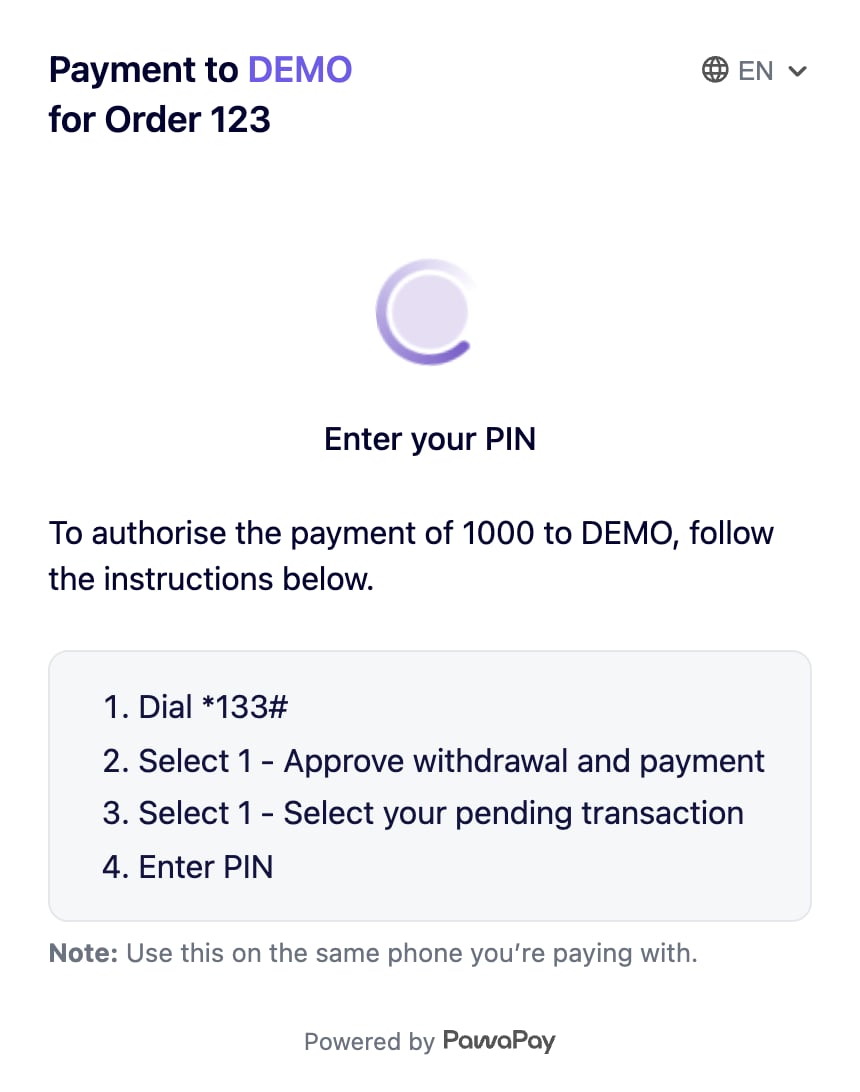 Some providers authorise automatically and skip this step. For providers that support it, if the PIN prompt expires it can be re-sent (revived), and the page shows the updated instructions — the customer does not need to start over.
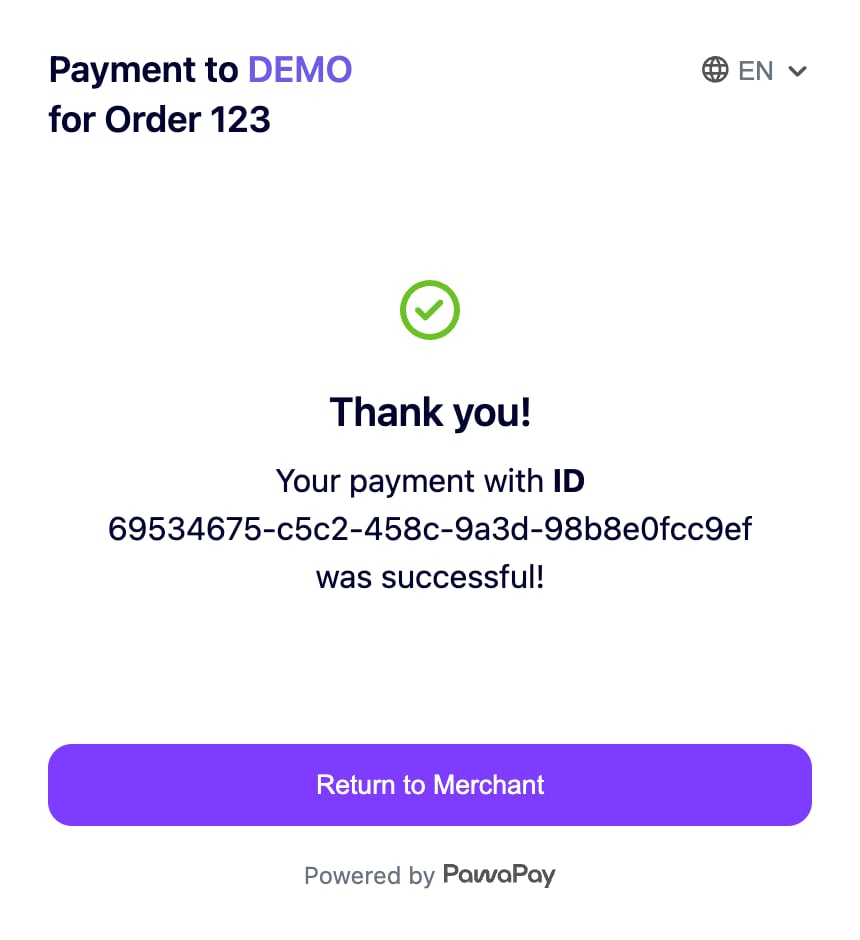 ## Creating and using a checkout
Send a request to the [initiate checkout](/v2/api-reference/checkouts/initiate-checkout) endpoint.
```json theme={null}
POST https://api.sandbox.pawapay.io/v2/checkouts
{
"checkoutId": "afb57b93-7849-49aa-babb-4c3ccbfe3d79",
"returnUrl": "https://merchant.example.com/checkout-result",
"returnMethod": "INSTANT",
"defaultLanguage": "en",
"countries": [
"ZMB"
],
"expiresAfter": 60,
"amounts": [
{
"country": "ZMB",
"currency": "ZMW",
"amount": "100"
}
],
"payer": {
"type": "MMO",
"accountDetails": {
"phoneNumber": "260973024434",
"provider": "MTN_MOMO_ZMB",
"allowCustomerToOverride": true
}
},
"clientReferenceId": "ORDER-123",
"reason": {
"en": "GOODS PURCHASE"
},
"metadata": [
{
"orderId": "ORDER-123"
},
{
"customerId": "CUST-456",
"isPII": true
}
]
}
```
`checkoutId` must be a UUIDv4 that you generate and store **before** making the request.
This is so that you always have a reference to the checkout you are expecting, even if you do not receive a response from us due to network errors.
This allows you to always **reconcile all payments** between your system and PawaPay.
The minimal valid request only requires `checkoutId` and `returnUrl`.
If you provide `payer`, then `payer.accountDetails.allowCustomerToOverride` is required.
When accepted, the response returns the `redirectUrl` for the hosted payment page that you forward the customer to.
You will receive a response immediately.
```json theme={null}
{
"checkoutId": "afb57b93-7849-49aa-babb-4c3ccbfe3d79",
"status": "ACCEPTED",
"redirectUrl": "https://payment.example.com/checkout/afb57b93-7849-49aa-babb-4c3ccbfe3d79",
"created": "2026-03-27T10:30:00Z",
"expiresAt": "2026-03-27T11:30:00Z",
"checkoutCode": "PPGAFB57B93"
}
```
You can tailor the customer experience through the optional parameters below.
| Parameter | Behaviour if specified | Behaviour if not specified |
| ----------------- | -------------------------------------------------------------------------------------------------------------------------------- | ------------------------------------------------------------------------------- |
| `amounts` | The customer can pay only one of the fixed amount, currency and country combinations provided. | The customer can enter the amount they wish to pay. |
| `countries` | The customer can pay only with a mobile money wallet from the specified countries. | The customer can pay with a wallet from any country configured on your account. |
| `payer` | The payer details are pre-filled in the page. Set `allowCustomerToOverride` to control whether the customer can change them. | The customer enters their wallet details. |
| `reason` | The localized reason is shown to the customer on the page. Each value must be 4–22 characters, letters, numbers and spaces only. | The customer is not shown what they are paying for. |
| `defaultLanguage` | The page opens in the specified language. Supported languages are `en` and `fr`. | The page uses its default language. |
| `expiresAfter` | The number of minutes after creation when the checkout expires. Must be between 3 and 60 minutes. | The checkout expires after the default of 15 minutes. |
| `returnMethod` | Controls **how** the customer is returned to your `returnUrl` once the payment is finished or cancelled (see below). | Defaults to returning the customer automatically once the payment is finished. |
The customer is always sent back to your `returnUrl` once the payment is finished or cancelled. The `returnMethod` controls **how** that happens:
| `returnMethod` | Behaviour |
| ----------------- | ----------------------------------------------------------------------------------------------- |
| `INSTANT` | The customer is redirected back immediately, with no extra screen. |
| `COUNTDOWN` | A short countdown is shown on the checkout page, then the customer is redirected automatically. |
| `CUSTOMER_ACTION` | The checkout page waits until the customer presses **Return to merchant**. |
Redirect the customer to `redirectUrl`.
This hosted payment page is where the customer selects or confirms the wallet details and authorises the payment.
Once the checkout flow finishes, the customer will be redirected to the `returnUrl` you provided, according to the `returnMethod`.
A checkout has its own lifecycle. You can find out its status by either **waiting for a callback** or **polling** the [check checkout status](/v2/api-reference/checkouts/check-checkout-status) endpoint.
When you have configured callbacks, PawaPay will `POST` a [checkout callback](/v2/api-reference/checkouts/checkout-callback) to your callback URL when the checkout reaches a final status.
You can also poll the status at any time. The status response gives you the overall checkout status together with the current payment attempt and the full history of attempts.
```json theme={null}
GET https://api.sandbox.pawapay.io/v2/checkouts/afb57b93-7849-49aa-babb-4c3ccbfe3d79
{
"status": "FOUND",
"data": {
"checkoutId": "afb57b93-7849-49aa-babb-4c3ccbfe3d79",
"status": "COMPLETED",
"redirectUrl": "https://payment.example.com/checkout/afb57b93-7849-49aa-babb-4c3ccbfe3d79",
"returnUrl": "https://merchant.example.com/checkout-result",
"returnMethod": "INSTANT",
"defaultLanguage": "en",
"countries": [
"ZMB"
],
"expiresAfter": 60,
"amounts": [
{
"country": "ZMB",
"currency": "ZMW",
"amount": "100"
}
],
"payer": {
"type": "MMO",
"accountDetails": {
"phoneNumber": "260973024434",
"provider": "MTN_MOMO_ZMB",
"allowCustomerToOverride": true
}
},
"clientReferenceId": "ORDER-123",
"created": "2026-03-27T10:30:00Z",
"providerTransactionId": "PROVIDER-TXN-123",
"depositStatus": "COMPLETED",
"deposit": {
"depositId": "eac4d2f3-cf36-4a24-a9eb-7014c630f8f0",
"status": "COMPLETED",
"created": "2026-03-27T10:35:00Z",
"providerTransactionId": "PROVIDER-TXN-123",
"amount": "100",
"currency": "ZMW",
"country": "ZMB",
"payer": {
"type": "MMO",
"accountDetails": {
"phoneNumber": "260973024434",
"provider": "MTN_MOMO_ZMB"
}
},
"customerMessage": "To ACME company"
},
"depositsHistory": [
{
"depositId": "eac4d2f3-cf36-4a24-a9eb-7014c630f8f0",
"status": "COMPLETED",
"created": "2026-03-27T10:35:00Z",
"providerTransactionId": "PROVIDER-TXN-123",
"amount": "100",
"currency": "ZMW",
"country": "ZMB",
"payer": {
"type": "MMO",
"accountDetails": {
"phoneNumber": "260973024434",
"provider": "MTN_MOMO_ZMB"
}
},
"customerMessage": "To ACME company"
}
],
"metadata": {
"orderId": "ORDER-123",
"customerId": "CUST-456"
},
"reason": {
"en": "GOODS PURCHASE"
},
"checkoutCode": "PPGAFB57B93"
}
}
```
`deposit` contains the latest payment attempt when one exists.
`depositsHistory` contains the full history of attempts for the checkout. PawaPay records these for you — you normally only need the checkout `status`.
If the checkout should no longer be used, call the [expire checkout](/v2/api-reference/checkouts/expire-checkout) endpoint.
After a checkout has expired, the customer can no longer make new payment attempts on it.
```json theme={null}
POST https://api.sandbox.pawapay.io/v2/checkouts/afb57b93-7849-49aa-babb-4c3ccbfe3d79/expire
{
"checkoutId": "afb57b93-7849-49aa-babb-4c3ccbfe3d79",
"status": "EXPIRED",
"expiredAt": "2026-03-27T10:45:00Z",
"reason": "MANUAL_EXPIRY",
"expiredBy": "API"
}
```
## Different ways to use a checkout
The same checkout endpoint supports a range of payment experiences, controlled by what you provide for `amounts`, `countries` and `payer`. Pick the combination that matches your use case.
The two parameters that shape the experience the most are:
* **`amounts`** — fix the amount(s) the customer can pay, or leave it out to let them enter their own.
* **`payer`** — pre-fill the mobile money wallet, and decide with `allowCustomerToOverride` whether the customer may change it.
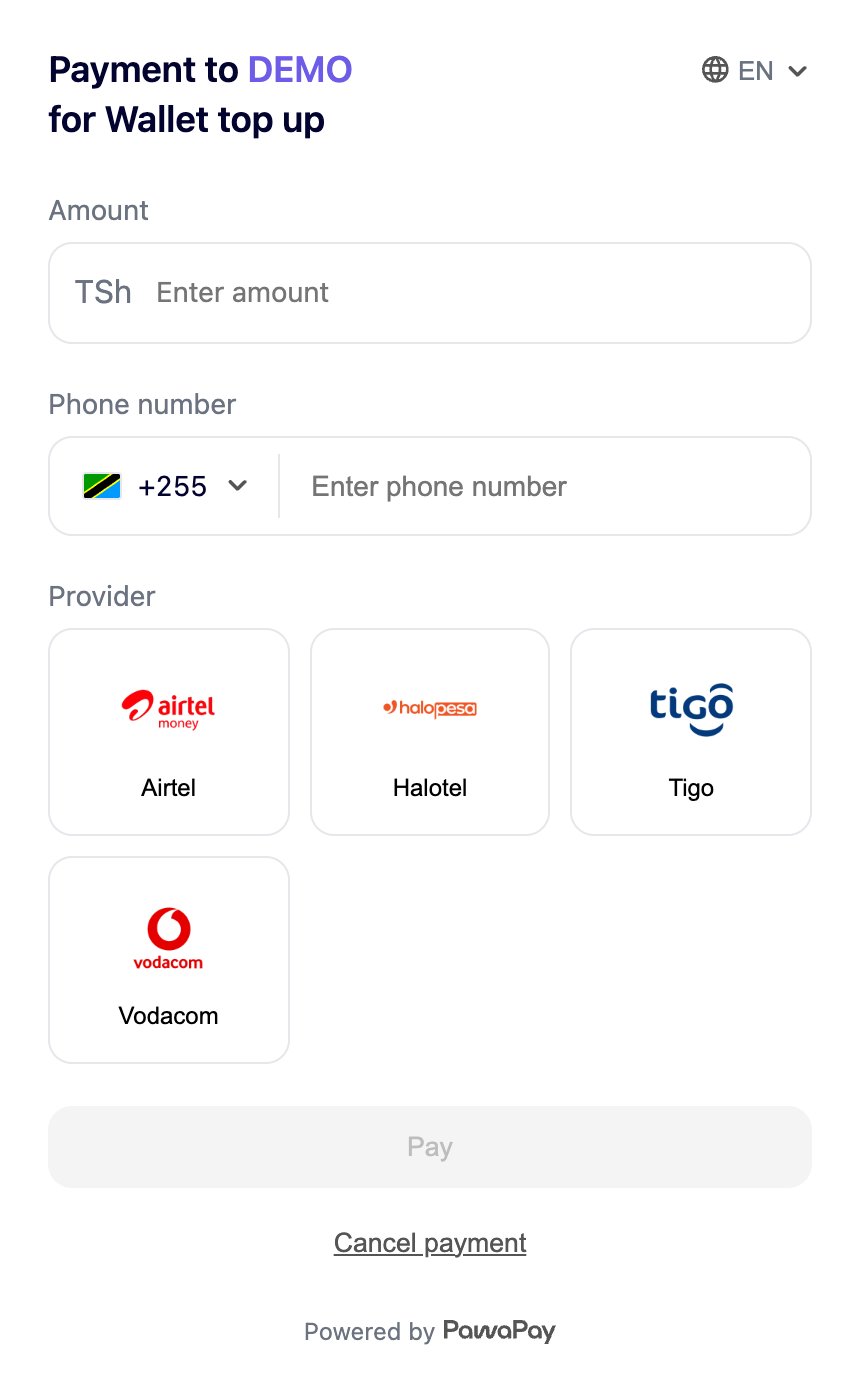
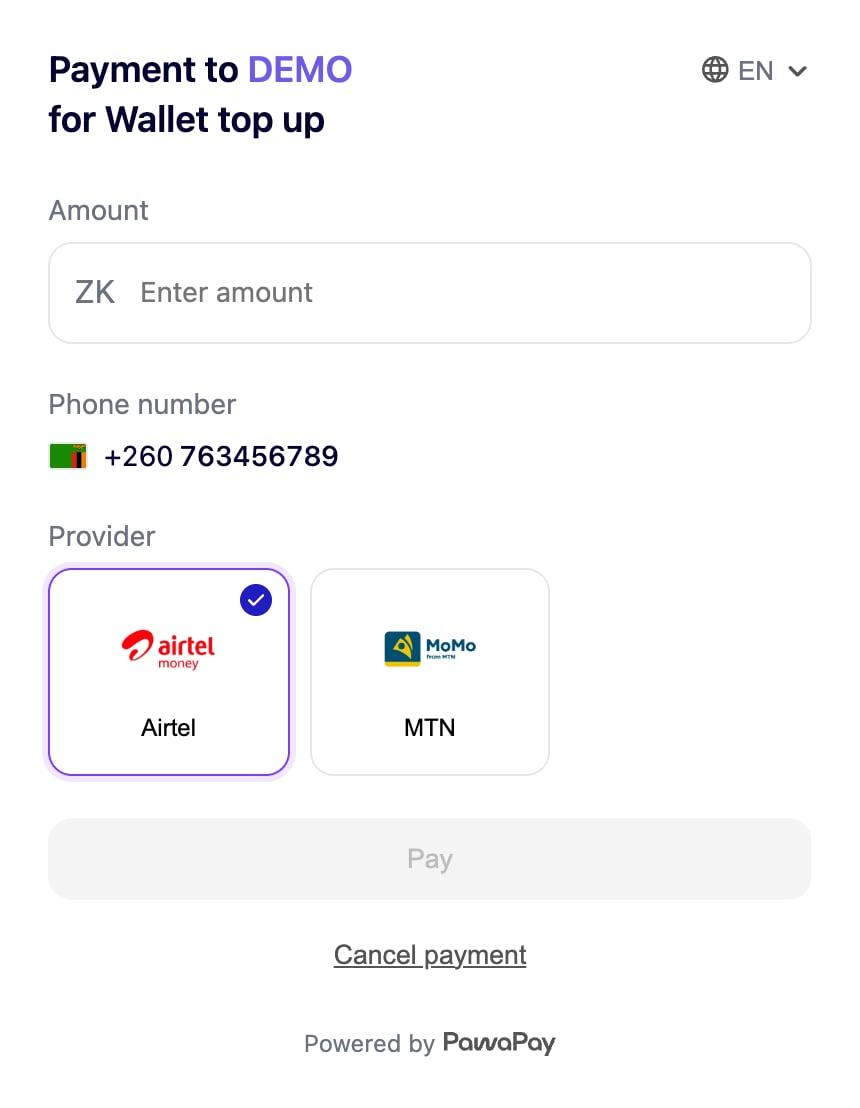
**Use this when the customer decides how much to pay** — for example topping up an eWallet, funding an account, or an open-ended donation. You don't know the amount up front, and the customer may pay from any wallet they like.
The minimal checkout only requires `checkoutId` and `returnUrl`.
```json theme={null}
POST https://api.sandbox.pawapay.io/v2/checkouts
{
"checkoutId": "afb57b93-7849-49aa-babb-4c3ccbfe3d79",
"returnUrl": "https://merchant.example.com/checkout-result",
"reason": {
"en": "Wallet top up"
}
}
```
The customer chooses the country, enters the mobile money wallet to pay from and enters the amount.
## Creating and using a checkout
Send a request to the [initiate checkout](/v2/api-reference/checkouts/initiate-checkout) endpoint.
```json theme={null}
POST https://api.sandbox.pawapay.io/v2/checkouts
{
"checkoutId": "afb57b93-7849-49aa-babb-4c3ccbfe3d79",
"returnUrl": "https://merchant.example.com/checkout-result",
"returnMethod": "INSTANT",
"defaultLanguage": "en",
"countries": [
"ZMB"
],
"expiresAfter": 60,
"amounts": [
{
"country": "ZMB",
"currency": "ZMW",
"amount": "100"
}
],
"payer": {
"type": "MMO",
"accountDetails": {
"phoneNumber": "260973024434",
"provider": "MTN_MOMO_ZMB",
"allowCustomerToOverride": true
}
},
"clientReferenceId": "ORDER-123",
"reason": {
"en": "GOODS PURCHASE"
},
"metadata": [
{
"orderId": "ORDER-123"
},
{
"customerId": "CUST-456",
"isPII": true
}
]
}
```
`checkoutId` must be a UUIDv4 that you generate and store **before** making the request.
This is so that you always have a reference to the checkout you are expecting, even if you do not receive a response from us due to network errors.
This allows you to always **reconcile all payments** between your system and PawaPay.
The minimal valid request only requires `checkoutId` and `returnUrl`.
If you provide `payer`, then `payer.accountDetails.allowCustomerToOverride` is required.
When accepted, the response returns the `redirectUrl` for the hosted payment page that you forward the customer to.
You will receive a response immediately.
```json theme={null}
{
"checkoutId": "afb57b93-7849-49aa-babb-4c3ccbfe3d79",
"status": "ACCEPTED",
"redirectUrl": "https://payment.example.com/checkout/afb57b93-7849-49aa-babb-4c3ccbfe3d79",
"created": "2026-03-27T10:30:00Z",
"expiresAt": "2026-03-27T11:30:00Z",
"checkoutCode": "PPGAFB57B93"
}
```
You can tailor the customer experience through the optional parameters below.
| Parameter | Behaviour if specified | Behaviour if not specified |
| ----------------- | -------------------------------------------------------------------------------------------------------------------------------- | ------------------------------------------------------------------------------- |
| `amounts` | The customer can pay only one of the fixed amount, currency and country combinations provided. | The customer can enter the amount they wish to pay. |
| `countries` | The customer can pay only with a mobile money wallet from the specified countries. | The customer can pay with a wallet from any country configured on your account. |
| `payer` | The payer details are pre-filled in the page. Set `allowCustomerToOverride` to control whether the customer can change them. | The customer enters their wallet details. |
| `reason` | The localized reason is shown to the customer on the page. Each value must be 4–22 characters, letters, numbers and spaces only. | The customer is not shown what they are paying for. |
| `defaultLanguage` | The page opens in the specified language. Supported languages are `en` and `fr`. | The page uses its default language. |
| `expiresAfter` | The number of minutes after creation when the checkout expires. Must be between 3 and 60 minutes. | The checkout expires after the default of 15 minutes. |
| `returnMethod` | Controls **how** the customer is returned to your `returnUrl` once the payment is finished or cancelled (see below). | Defaults to returning the customer automatically once the payment is finished. |
The customer is always sent back to your `returnUrl` once the payment is finished or cancelled. The `returnMethod` controls **how** that happens:
| `returnMethod` | Behaviour |
| ----------------- | ----------------------------------------------------------------------------------------------- |
| `INSTANT` | The customer is redirected back immediately, with no extra screen. |
| `COUNTDOWN` | A short countdown is shown on the checkout page, then the customer is redirected automatically. |
| `CUSTOMER_ACTION` | The checkout page waits until the customer presses **Return to merchant**. |
Redirect the customer to `redirectUrl`.
This hosted payment page is where the customer selects or confirms the wallet details and authorises the payment.
Once the checkout flow finishes, the customer will be redirected to the `returnUrl` you provided, according to the `returnMethod`.
A checkout has its own lifecycle. You can find out its status by either **waiting for a callback** or **polling** the [check checkout status](/v2/api-reference/checkouts/check-checkout-status) endpoint.
When you have configured callbacks, PawaPay will `POST` a [checkout callback](/v2/api-reference/checkouts/checkout-callback) to your callback URL when the checkout reaches a final status.
You can also poll the status at any time. The status response gives you the overall checkout status together with the current payment attempt and the full history of attempts.
```json theme={null}
GET https://api.sandbox.pawapay.io/v2/checkouts/afb57b93-7849-49aa-babb-4c3ccbfe3d79
{
"status": "FOUND",
"data": {
"checkoutId": "afb57b93-7849-49aa-babb-4c3ccbfe3d79",
"status": "COMPLETED",
"redirectUrl": "https://payment.example.com/checkout/afb57b93-7849-49aa-babb-4c3ccbfe3d79",
"returnUrl": "https://merchant.example.com/checkout-result",
"returnMethod": "INSTANT",
"defaultLanguage": "en",
"countries": [
"ZMB"
],
"expiresAfter": 60,
"amounts": [
{
"country": "ZMB",
"currency": "ZMW",
"amount": "100"
}
],
"payer": {
"type": "MMO",
"accountDetails": {
"phoneNumber": "260973024434",
"provider": "MTN_MOMO_ZMB",
"allowCustomerToOverride": true
}
},
"clientReferenceId": "ORDER-123",
"created": "2026-03-27T10:30:00Z",
"providerTransactionId": "PROVIDER-TXN-123",
"depositStatus": "COMPLETED",
"deposit": {
"depositId": "eac4d2f3-cf36-4a24-a9eb-7014c630f8f0",
"status": "COMPLETED",
"created": "2026-03-27T10:35:00Z",
"providerTransactionId": "PROVIDER-TXN-123",
"amount": "100",
"currency": "ZMW",
"country": "ZMB",
"payer": {
"type": "MMO",
"accountDetails": {
"phoneNumber": "260973024434",
"provider": "MTN_MOMO_ZMB"
}
},
"customerMessage": "To ACME company"
},
"depositsHistory": [
{
"depositId": "eac4d2f3-cf36-4a24-a9eb-7014c630f8f0",
"status": "COMPLETED",
"created": "2026-03-27T10:35:00Z",
"providerTransactionId": "PROVIDER-TXN-123",
"amount": "100",
"currency": "ZMW",
"country": "ZMB",
"payer": {
"type": "MMO",
"accountDetails": {
"phoneNumber": "260973024434",
"provider": "MTN_MOMO_ZMB"
}
},
"customerMessage": "To ACME company"
}
],
"metadata": {
"orderId": "ORDER-123",
"customerId": "CUST-456"
},
"reason": {
"en": "GOODS PURCHASE"
},
"checkoutCode": "PPGAFB57B93"
}
}
```
`deposit` contains the latest payment attempt when one exists.
`depositsHistory` contains the full history of attempts for the checkout. PawaPay records these for you — you normally only need the checkout `status`.
If the checkout should no longer be used, call the [expire checkout](/v2/api-reference/checkouts/expire-checkout) endpoint.
After a checkout has expired, the customer can no longer make new payment attempts on it.
```json theme={null}
POST https://api.sandbox.pawapay.io/v2/checkouts/afb57b93-7849-49aa-babb-4c3ccbfe3d79/expire
{
"checkoutId": "afb57b93-7849-49aa-babb-4c3ccbfe3d79",
"status": "EXPIRED",
"expiredAt": "2026-03-27T10:45:00Z",
"reason": "MANUAL_EXPIRY",
"expiredBy": "API"
}
```
## Different ways to use a checkout
The same checkout endpoint supports a range of payment experiences, controlled by what you provide for `amounts`, `countries` and `payer`. Pick the combination that matches your use case.
The two parameters that shape the experience the most are:
* **`amounts`** — fix the amount(s) the customer can pay, or leave it out to let them enter their own.
* **`payer`** — pre-fill the mobile money wallet, and decide with `allowCustomerToOverride` whether the customer may change it.
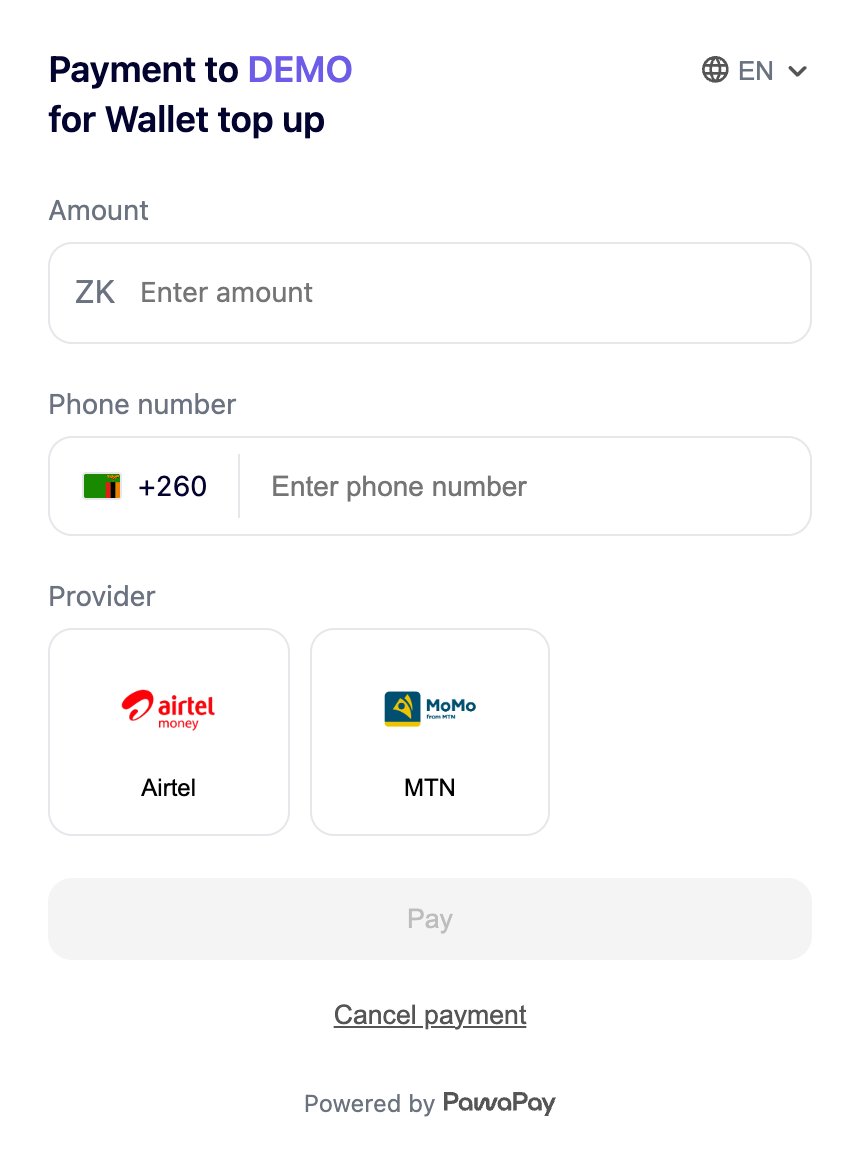
**Use this when the customer decides how much to pay** — for example topping up an eWallet, funding an account, or an open-ended donation. You don't know the amount up front, and the customer may pay from any wallet they like.
The minimal checkout only requires `checkoutId` and `returnUrl`.
```json theme={null}
POST https://api.sandbox.pawapay.io/v2/checkouts
{
"checkoutId": "afb57b93-7849-49aa-babb-4c3ccbfe3d79",
"returnUrl": "https://merchant.example.com/checkout-result",
"reason": {
"en": "Wallet top up"
}
}
```
The customer chooses the country, enters the mobile money wallet to pay from and enters the amount.
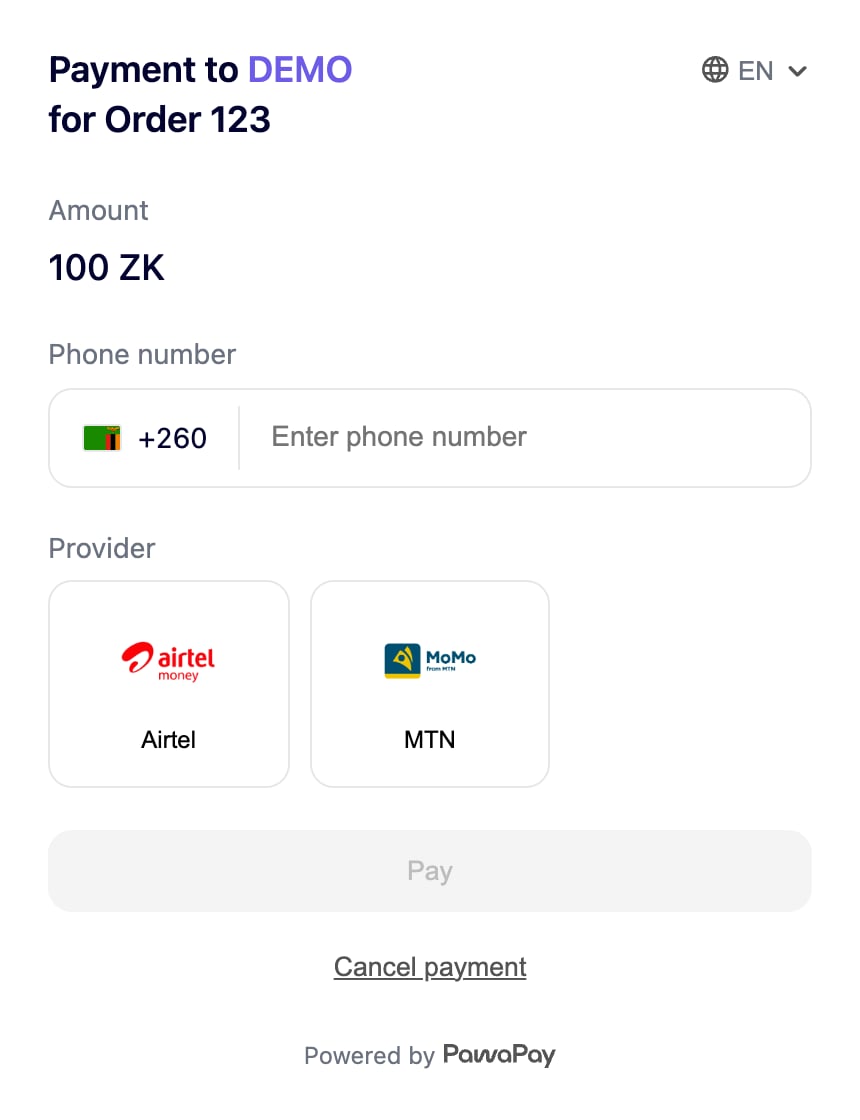
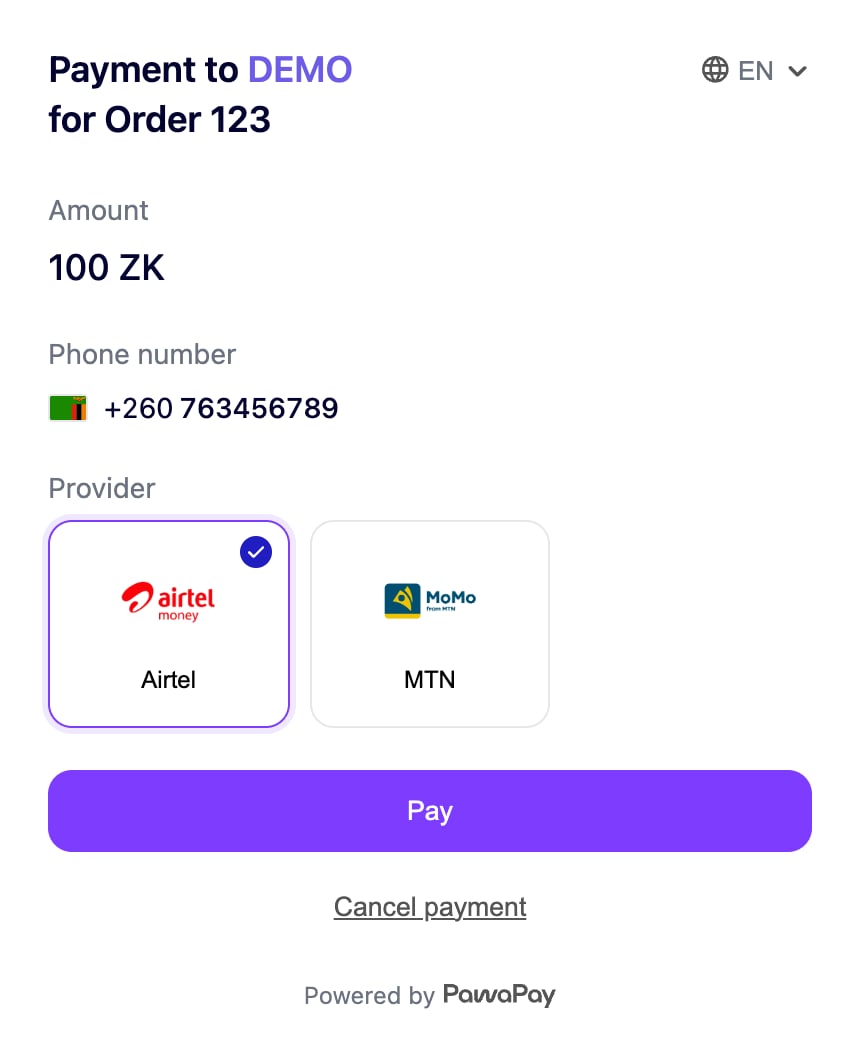
 **Use this when you know the price but not the wallet** — the classic e-commerce order total. You set the amount and the customer simply picks which wallet to pay from. Provide a single entry in `amounts` and the amount is locked.
```json {6-12} theme={null}
POST https://api.sandbox.pawapay.io/v2/checkouts
{
"checkoutId": "1b9c4f80-2c1e-4d0a-9b3a-0c7d1e2f3a4b",
"returnUrl": "https://merchant.example.com/checkout-result",
"amounts": [
{
"country": "ZMB",
"currency": "ZMW",
"amount": "100"
}
],
"reason": {
"en": "Order 123"
}
}
```
Each entry in `amounts` requires `country`, `currency` and `amount` together. The `currency` must be one that is supported in the specified `country`.
If the customer can pay from more than one country, you must include an `amounts` entry for **every country and currency combination** you want to support — the page shows the entry matching the country the customer is paying from. A country can also support more than one currency: for example, in the DRC (`COD`) both the Congolese franc (`CDF`) and US dollar (`USD`) are supported, so to offer USD you must include a `USD` entry as well.
[Providers](/v2/docs/providers) have transaction limits. You can use the [active configuration](/v2/api-reference/toolkit/active-configuration) endpoint to validate that the amount is within the transaction limits before creating the checkout.
The page shows the fixed amount and only asks the customer for the wallet to pay from.
**Use this when you know the price but not the wallet** — the classic e-commerce order total. You set the amount and the customer simply picks which wallet to pay from. Provide a single entry in `amounts` and the amount is locked.
```json {6-12} theme={null}
POST https://api.sandbox.pawapay.io/v2/checkouts
{
"checkoutId": "1b9c4f80-2c1e-4d0a-9b3a-0c7d1e2f3a4b",
"returnUrl": "https://merchant.example.com/checkout-result",
"amounts": [
{
"country": "ZMB",
"currency": "ZMW",
"amount": "100"
}
],
"reason": {
"en": "Order 123"
}
}
```
Each entry in `amounts` requires `country`, `currency` and `amount` together. The `currency` must be one that is supported in the specified `country`.
If the customer can pay from more than one country, you must include an `amounts` entry for **every country and currency combination** you want to support — the page shows the entry matching the country the customer is paying from. A country can also support more than one currency: for example, in the DRC (`COD`) both the Congolese franc (`CDF`) and US dollar (`USD`) are supported, so to offer USD you must include a `USD` entry as well.
[Providers](/v2/docs/providers) have transaction limits. You can use the [active configuration](/v2/api-reference/toolkit/active-configuration) endpoint to validate that the amount is within the transaction limits before creating the checkout.
The page shows the fixed amount and only asks the customer for the wallet to pay from.
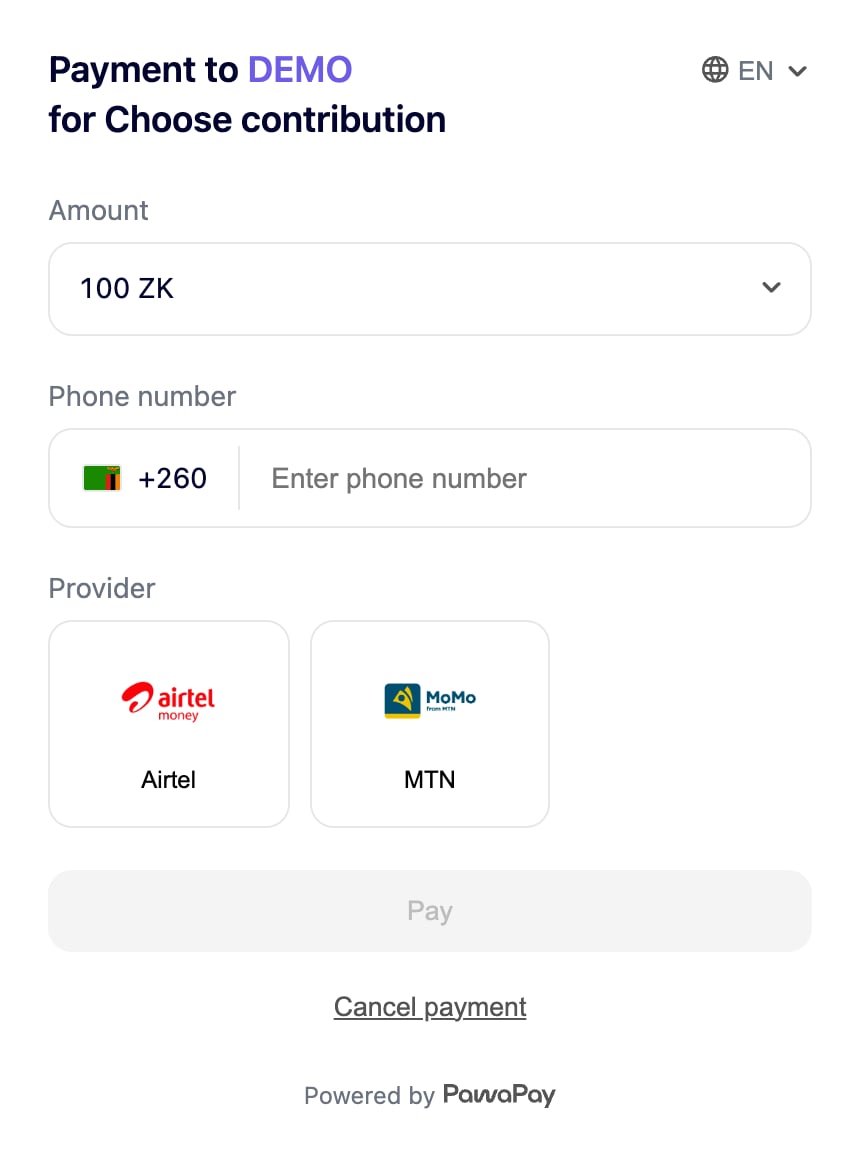
 **Use this for predefined price points** — tipping, donation tiers, or packages and bundles where the customer chooses from a set of amounts you define. Provide several entries in `amounts`.
```json {6-23} theme={null}
POST https://api.sandbox.pawapay.io/v2/checkouts
{
"checkoutId": "2c8d5e91-3d2f-4e1b-8c4b-1d8e2f3a4b5c",
"returnUrl": "https://merchant.example.com/checkout-result",
"amounts": [
{
"country": "ZMB",
"currency": "ZMW",
"amount": "100"
},
{
"country": "ZMB",
"currency": "ZMW",
"amount": "250"
},
{
"country": "ZMB",
"currency": "ZMW",
"amount": "500"
}
],
"reason": {
"en": "Choose contribution"
}
}
```
The page shows your amounts as options for the customer to choose from. The other details depend on the rest of your configuration.
**Use this for predefined price points** — tipping, donation tiers, or packages and bundles where the customer chooses from a set of amounts you define. Provide several entries in `amounts`.
```json {6-23} theme={null}
POST https://api.sandbox.pawapay.io/v2/checkouts
{
"checkoutId": "2c8d5e91-3d2f-4e1b-8c4b-1d8e2f3a4b5c",
"returnUrl": "https://merchant.example.com/checkout-result",
"amounts": [
{
"country": "ZMB",
"currency": "ZMW",
"amount": "100"
},
{
"country": "ZMB",
"currency": "ZMW",
"amount": "250"
},
{
"country": "ZMB",
"currency": "ZMW",
"amount": "500"
}
],
"reason": {
"en": "Choose contribution"
}
}
```
The page shows your amounts as options for the customer to choose from. The other details depend on the rest of your configuration.
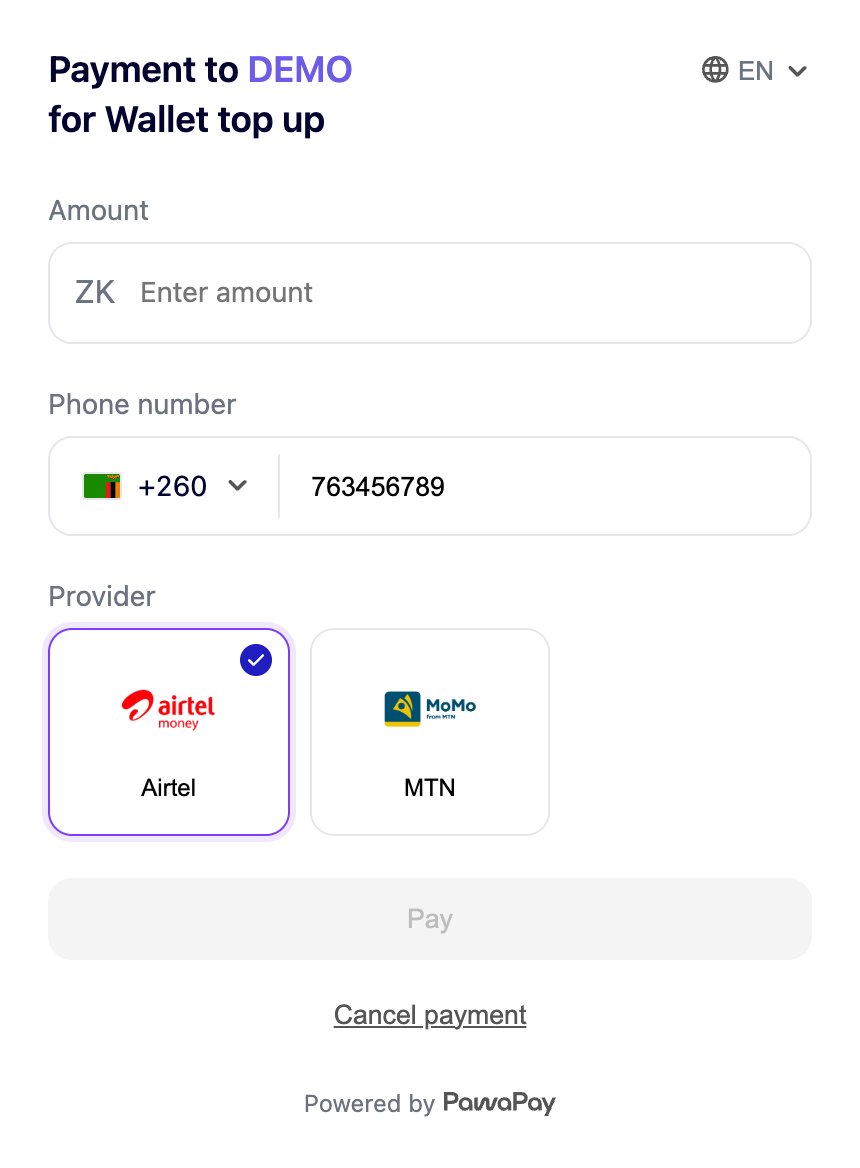
 **Use this when you only collect payments in specific markets** — restricting the countries keeps the page focused on where you actually operate, and stops customers from selecting a country you can't settle in. By default, the customer can pay with a mobile money wallet from any country configured on your PawaPay account; use `countries` to narrow it.
Fix a single country so the customer can only pay from there:
```json {6-8} theme={null}
POST https://api.sandbox.pawapay.io/v2/checkouts
{
"checkoutId": "3d9e6fa2-4e3a-4f2c-9d5c-2e9f3a4b5c6d",
"returnUrl": "https://merchant.example.com/checkout-result",
"countries": [
"ZMB"
]
}
```
Or offer a subset of countries and let the customer choose between them:
```json {6-10} theme={null}
POST https://api.sandbox.pawapay.io/v2/checkouts
{
"checkoutId": "4ea07fb3-5f4b-4a3d-8e6d-3fa04b5c6d7e",
"returnUrl": "https://merchant.example.com/checkout-result",
"countries": [
"ZMB",
"UGA",
"TZA"
]
}
```
If you fix `amounts` as well, make sure the `country` of each amount option falls within the allowed `countries`. The page shows the amount option matching the country the customer is paying from.
The page only offers the countries you allow.
**Use this when you only collect payments in specific markets** — restricting the countries keeps the page focused on where you actually operate, and stops customers from selecting a country you can't settle in. By default, the customer can pay with a mobile money wallet from any country configured on your PawaPay account; use `countries` to narrow it.
Fix a single country so the customer can only pay from there:
```json {6-8} theme={null}
POST https://api.sandbox.pawapay.io/v2/checkouts
{
"checkoutId": "3d9e6fa2-4e3a-4f2c-9d5c-2e9f3a4b5c6d",
"returnUrl": "https://merchant.example.com/checkout-result",
"countries": [
"ZMB"
]
}
```
Or offer a subset of countries and let the customer choose between them:
```json {6-10} theme={null}
POST https://api.sandbox.pawapay.io/v2/checkouts
{
"checkoutId": "4ea07fb3-5f4b-4a3d-8e6d-3fa04b5c6d7e",
"returnUrl": "https://merchant.example.com/checkout-result",
"countries": [
"ZMB",
"UGA",
"TZA"
]
}
```
If you fix `amounts` as well, make sure the `country` of each amount option falls within the allowed `countries`. The page shows the amount option matching the country the customer is paying from.
The page only offers the countries you allow.
 **Use this for returning customers** — pre-filling the wallet they used before removes a step at checkout and speeds up conversion, while `allowCustomerToOverride: true` still lets them pay from a different wallet if they want. Provide `payer` with `allowCustomerToOverride` set to `true`.
```json {6-15} theme={null}
POST https://api.sandbox.pawapay.io/v2/checkouts
{
"checkoutId": "5fb18ac4-6a5c-4b4e-9f7e-4ab15c6d7e8f",
"returnUrl": "https://merchant.example.com/checkout-result",
"payer": {
"type": "MMO",
"accountDetails": {
"phoneNumber": "260973024434",
"provider": "MTN_MOMO_ZMB",
"allowCustomerToOverride": true
}
}
}
```
When collecting the phone number, we strongly recommend using our [predict provider](/v2/api-reference/toolkit/predict-provider) endpoint.
It validates the phone number and returns it, together with the `provider`, in a format that works for the checkout.
The page opens with the wallet pre-filled, and the customer can still change it.
**Use this for returning customers** — pre-filling the wallet they used before removes a step at checkout and speeds up conversion, while `allowCustomerToOverride: true` still lets them pay from a different wallet if they want. Provide `payer` with `allowCustomerToOverride` set to `true`.
```json {6-15} theme={null}
POST https://api.sandbox.pawapay.io/v2/checkouts
{
"checkoutId": "5fb18ac4-6a5c-4b4e-9f7e-4ab15c6d7e8f",
"returnUrl": "https://merchant.example.com/checkout-result",
"payer": {
"type": "MMO",
"accountDetails": {
"phoneNumber": "260973024434",
"provider": "MTN_MOMO_ZMB",
"allowCustomerToOverride": true
}
}
}
```
When collecting the phone number, we strongly recommend using our [predict provider](/v2/api-reference/toolkit/predict-provider) endpoint.
It validates the phone number and returns it, together with the `provider`, in a format that works for the checkout.
The page opens with the wallet pre-filled, and the customer can still change it.
 **Use this when the customer must pay from a specific wallet** — for example loan repayments, payouts of winnings, or any KYC-verified flow where the paying wallet has to match the one on file. This guards against fraud and keeps you compliant. Provide `payer` with `allowCustomerToOverride` set to `false` and the wallet is locked.
```json {12} theme={null}
POST https://api.sandbox.pawapay.io/v2/checkouts
{
"checkoutId": "6ac29bd5-7b6d-4c5f-8a8f-5bc26d7e8f90",
"returnUrl": "https://merchant.example.com/checkout-result",
"payer": {
"type": "MMO",
"accountDetails": {
"phoneNumber": "260973024434",
"provider": "MTN_MOMO_ZMB",
"allowCustomerToOverride": false
}
}
}
```
When you provide `payer`, `allowCustomerToOverride` is always required.
The page shows the wallet as fixed and the customer cannot change it.
**Use this when the customer must pay from a specific wallet** — for example loan repayments, payouts of winnings, or any KYC-verified flow where the paying wallet has to match the one on file. This guards against fraud and keeps you compliant. Provide `payer` with `allowCustomerToOverride` set to `false` and the wallet is locked.
```json {12} theme={null}
POST https://api.sandbox.pawapay.io/v2/checkouts
{
"checkoutId": "6ac29bd5-7b6d-4c5f-8a8f-5bc26d7e8f90",
"returnUrl": "https://merchant.example.com/checkout-result",
"payer": {
"type": "MMO",
"accountDetails": {
"phoneNumber": "260973024434",
"provider": "MTN_MOMO_ZMB",
"allowCustomerToOverride": false
}
}
}
```
When you provide `payer`, `allowCustomerToOverride` is always required.
The page shows the wallet as fixed and the customer cannot change it.
 **Use this for the fastest possible checkout** — when both the customer and the amount are known, such as a subscription renewal, an in-app purchase or a repeat order. Combining a fixed `amounts` entry with a fixed `payer` leaves the customer nothing to enter but the authorisation.
```json {6-21} theme={null}
POST https://api.sandbox.pawapay.io/v2/checkouts
{
"checkoutId": "7bd3ace6-8c7e-4d6a-9b90-6cd37e8f9012",
"returnUrl": "https://merchant.example.com/checkout-result",
"amounts": [
{
"country": "ZMB",
"currency": "ZMW",
"amount": "100"
}
],
"payer": {
"type": "MMO",
"accountDetails": {
"phoneNumber": "260973024434",
"provider": "MTN_MOMO_ZMB",
"allowCustomerToOverride": false
}
},
"reason": {
"en": "Order 123"
}
}
```
This is the most streamlined experience: the amount and wallet are both fixed, so the customer just confirms and authorises the payment.
**Use this for the fastest possible checkout** — when both the customer and the amount are known, such as a subscription renewal, an in-app purchase or a repeat order. Combining a fixed `amounts` entry with a fixed `payer` leaves the customer nothing to enter but the authorisation.
```json {6-21} theme={null}
POST https://api.sandbox.pawapay.io/v2/checkouts
{
"checkoutId": "7bd3ace6-8c7e-4d6a-9b90-6cd37e8f9012",
"returnUrl": "https://merchant.example.com/checkout-result",
"amounts": [
{
"country": "ZMB",
"currency": "ZMW",
"amount": "100"
}
],
"payer": {
"type": "MMO",
"accountDetails": {
"phoneNumber": "260973024434",
"provider": "MTN_MOMO_ZMB",
"allowCustomerToOverride": false
}
},
"reason": {
"en": "Order 123"
}
}
```
This is the most streamlined experience: the amount and wallet are both fixed, so the customer just confirms and authorises the payment.
 The table below summarises how the customer experience changes based on what you provide.
| You provide | Customer experience |
| --------------------------------------------- | ---------------------------------------------------- |
| Neither `amounts` nor `payer` | Customer chooses the country, wallet and amount. |
| `amounts` with one entry | Amount is fixed; customer chooses the wallet. |
| `amounts` with several entries | Customer picks one of the offered amounts. |
| `countries` | Customer can only pay from the listed countries. |
| `payer` with `allowCustomerToOverride: true` | Wallet is pre-filled but the customer can change it. |
| `payer` with `allowCustomerToOverride: false` | Wallet is fixed and cannot be changed. |
| Fixed `amounts` + fixed `payer` | Customer only authorises the payment. |
## The checkout lifecycle
A checkout moves through its own statuses, independently of the individual payment attempts inside it.
Just like [deposits](/v2/docs/deposits), a checkout has two separate kinds of status:
* The **initiation status** returned in the [initiate checkout](/v2/api-reference/checkouts/initiate-checkout) response — `ACCEPTED`, `REJECTED` or `DUPLICATE_IGNORED` — tells you whether the request was accepted for processing.
* The **lifecycle status** below — returned by [check checkout status](/v2/api-reference/checkouts/check-checkout-status) and in callbacks — tracks the checkout itself. Once accepted, a checkout enters its lifecycle at `WAITING_PAYMENT`.
| Checkout `status` | Meaning |
| ----------------- | ---------------------------------------------------------------------------------------------------------------- |
| `WAITING_PAYMENT` | The checkout and its hosted payment page have been created and are waiting for the customer to pay. |
| `PROCESSING` | A payment attempt is in progress and the checkout is still being processed. |
| `COMPLETED` | The checkout has completed successfully. **Final status.** |
| `FAILED` | The checkout has failed. Inspect `deposit` or `depositsHistory` for the latest attempt result. **Final status.** |
| `EXPIRED` | The checkout has expired and can no longer be used. **Final status.** |
| `CANCELLED` | The customer cancelled the payment on the hosted payment page. **Final status.** |
The aggregate `depositStatus` and each entry in `depositsHistory` reflect the payment attempts, which follow the standard payment lifecycle (`ACCEPTED`, `PROCESSING`, `COMPLETED`, `FAILED`).
A single checkout can contain multiple payment attempts, but at most one can complete successfully.
When a customer retries a failed attempt on the hosted payment page, the new attempt is added to `depositsHistory` automatically — you don't need to create or manage anything.
## Cancellation and returning to your site
The customer is sent back to your `returnUrl` (with the `checkoutId` appended as a query parameter) in these cases:
* **The payment succeeds** — the customer is returned automatically, following the `returnMethod` you set: immediately (`INSTANT`), after a short countdown (`COUNTDOWN`), or when they press **Return to merchant** (`CUSTOMER_ACTION`).
* **The customer cancels** — they can press **Cancel payment** on the hosted payment page. They are asked to confirm (*"Yes, cancel"* / *"No, stay"*), and once they confirm they are redirected back to your `returnUrl`. The checkout status becomes `CANCELLED`.
After a **failed** attempt, the customer stays on the hosted payment page and can retry within the same checkout — they are **not** redirected automatically. Only a successful payment triggers the automatic return. At any time the customer can press **Return to merchant** to go back.
A **failed or expired** checkout does **not** redirect the customer back to your site automatically. If the customer keeps failing or abandons the page, the checkout reaches `EXPIRED` once `expiresAfter` elapses, but the customer is not sent back. Always confirm the final result from the checkout `status` (via callback or [check checkout status](/v2/api-reference/checkouts/check-checkout-status)) rather than relying on the customer returning to your `returnUrl`.
## How to find out the result
When the checkout reaches a final status, you will receive a [checkout callback](/v2/api-reference/checkouts/checkout-callback) with the final state of the checkout, including the latest payment attempt and the full history of attempts.
If you have not configured callbacks, you can poll the [check checkout status](/v2/api-reference/checkouts/check-checkout-status) endpoint.
On your `returnUrl` you should validate the final status by either confirming the callback has been received or using the [check checkout status](/v2/api-reference/checkouts/check-checkout-status) endpoint.
A checkout will expire after `expiresAfter` minutes (or the default expiry). If the customer abandons the checkout without a successful payment, it will eventually reach the `EXPIRED` status.
You don't need to manage the individual attempts — the checkout status already tells you the result.
If you prefer, each attempt also behaves like a standard [deposit](/v2/docs/deposits), so you can rely on the [deposit callback](/v2/api-reference/deposits/deposit-callback) and the [check deposit status](/v2/api-reference/deposits/check-deposit-status) endpoint for it.
We now know what happened to the payment and can make sure it's reflected accurately.
Let's now take a look at how to handle failed payments.
## Handling processing failures
If an attempt's `status` is `FAILED`, you can find further information about the failure from its `failureReason`.
It includes the `failureCode` and the `failureMessage` indicating what has gone wrong.
Checkout payments use the same failure codes as standard [deposits](/v2/docs/deposits).
The `failureMessage` from PawaPay API is meant for you and your support and operations teams.
You are free to decide what message to show to the customer.
Find all the [failure codes](/v2/docs/failure_codes#transaction-failure-codes) and implement handling as you choose.
Because the customer can make multiple attempts within a checkout, a failed attempt does not necessarily mean the checkout has failed — they can simply retry within the same checkout, with no action needed from you. Treat the checkout as failed only when its own `status` is `FAILED` or `EXPIRED`.
We have standardised the numerous different failure codes and scenarios with all the different providers.
The quality of the failure codes varies by provider.
The `UNSPECIFIED_FAILURE` code indicates that the provider indicated a failure with the payment, but did not provide any more specifics on the reason of the failure.
In case there is a general failure, the `UNKNOWN_ERROR` failureCode would be returned.
## Ensuring consistency
When working with financial APIs there are some considerations to take to ensure that you never think a payment is failed, when it is actually successful or vice versa.
It is essential to keep systems in sync on the statuses of payments.
Let's take a look at some considerations and pseudocode to ensure consistency.
All statuses should be checked defensively without assumptions.
```json theme={null}
if( checkout.status == "COMPLETED" ) {
myInvoice.setPaymentStatus(COMPLETED);
} else if ( checkout.status == "FAILED" || checkout.status == "EXPIRED" ) {
myInvoice.setPaymentStatus(FAILED);
} else if ( checkout.status == "WAITING_PAYMENT" || checkout.status == "PROCESSING" ) {
//The checkout is still in progress. Keep it pending and check again later.
myInvoice.setPaymentStatus(PENDING);
} else {
//It is unclear what might have happened. Escalate for further investigation.
myInvoice.setPaymentStatus(NEEDS_ATTENTION);
}
```
The key reason we require you to provide a `checkoutId` for each checkout is to ensure that you can always ask us what the status of a checkout is, even if you never get a response from us.
You should always store this `checkoutId` in your system **before** [initiating a checkout](/v2/api-reference/checkouts/initiate-checkout).
```json theme={null}
var checkoutId = new UUIDv4();
//Let's store the checkoutId we will use to ensure we always have it available even if something dramatic happens
myInvoice.setExternalPaymentId(checkoutId).save();
myInvoice.setPaymentStatus(PENDING);
try {
var initiationResponse = PawaPay.initiateCheckout(checkoutId, ...)
} catch (InterruptedException e) {
var checkResult = PawaPay.checkCheckoutStatus(checkoutId);
if ( checkResult.status == "FOUND" ) {
//The checkout reached PawaPay. Check the status of it from the response.
} else if ( checkResult.status == "NOT_FOUND" ) {
//The checkout did not reach PawaPay. Safe to retry creating it.
} else {
//Unable to determine the status. Leave the payment as pending.
//We will create a status recheck cycle later for such cases.
}
}
```
The important thing to notice here is that we only mark a payment as FAILED when there is a clear indication of its failure.
We use the [check checkout status](/v2/api-reference/checkouts/check-checkout-status) endpoint when in doubt whether the checkout was `ACCEPTED` by PawaPay.
Implementing the considerations listed above avoids almost all discrepancies of payment statuses between your system and PawaPay.
When using callbacks to receive the final statuses of payments, issues like network connectivity, system downtime, and configuration errors might cause the callback not to be received by your system.
To avoid keeping your customers waiting, we strongly recommend implementing a status recheck cycle.
This might look something like the following.
```json theme={null}
//Run the job every few minutes.
var pendingInvoices = invoices.getAllPendingForLongerThan15Minutes();
for ( invoice in pendingInvoices ) {
var checkResult = PawaPay.checkCheckoutStatus(invoice.getExternalPaymentId);
if ( checkResult.status == "FOUND" ) {
//Determine if the checkout is in a final status and handle accordingly
handleInvoiceStatus(checkResult.data);
} else if (checkResult.status == "NOT_FOUND" ) {
//The checkout has never reached PawaPay. Can be retried safely.
} else {
//Something must have gone wrong. Leave for next cycle.
}
}
```
Having followed the rest of the guide, with this simple reconciliation cycle, you should not have any inconsistencies between your system and PawaPay.
Having these checks automated will take a load off your operations and support teams as well.
## Payments in reconciliation
When using PawaPay **all payments are reconciled** by default and automatically — we validate every final status to ensure there are no discrepancies.
Sometimes the final status of a payment attempt cannot be determined immediately and the attempt is sent to our automatic reconciliation engine. While this happens, the payment attempt — and the checkout — simply remain in `PROCESSING`; the Checkout API does not surface a separate reconciliation status.
You do not need to take any action — the final status will be determined soon.
The reconciliation time varies by provider. Payments that turn out to be successful are reconciled faster.
## What to do next?
We've made everything easy to test in our sandbox environment before going live.
We have different phone numbers that you can use to test various failure scenarios on your sandbox account.
Make sure all the failure codes are handled.
To ensure your funds are safe even if your API token should leak, you can always implement signatures for financial calls to add another layer of security.
Have a look at what to consider to make sure everything goes well.
The table below summarises how the customer experience changes based on what you provide.
| You provide | Customer experience |
| --------------------------------------------- | ---------------------------------------------------- |
| Neither `amounts` nor `payer` | Customer chooses the country, wallet and amount. |
| `amounts` with one entry | Amount is fixed; customer chooses the wallet. |
| `amounts` with several entries | Customer picks one of the offered amounts. |
| `countries` | Customer can only pay from the listed countries. |
| `payer` with `allowCustomerToOverride: true` | Wallet is pre-filled but the customer can change it. |
| `payer` with `allowCustomerToOverride: false` | Wallet is fixed and cannot be changed. |
| Fixed `amounts` + fixed `payer` | Customer only authorises the payment. |
## The checkout lifecycle
A checkout moves through its own statuses, independently of the individual payment attempts inside it.
Just like [deposits](/v2/docs/deposits), a checkout has two separate kinds of status:
* The **initiation status** returned in the [initiate checkout](/v2/api-reference/checkouts/initiate-checkout) response — `ACCEPTED`, `REJECTED` or `DUPLICATE_IGNORED` — tells you whether the request was accepted for processing.
* The **lifecycle status** below — returned by [check checkout status](/v2/api-reference/checkouts/check-checkout-status) and in callbacks — tracks the checkout itself. Once accepted, a checkout enters its lifecycle at `WAITING_PAYMENT`.
| Checkout `status` | Meaning |
| ----------------- | ---------------------------------------------------------------------------------------------------------------- |
| `WAITING_PAYMENT` | The checkout and its hosted payment page have been created and are waiting for the customer to pay. |
| `PROCESSING` | A payment attempt is in progress and the checkout is still being processed. |
| `COMPLETED` | The checkout has completed successfully. **Final status.** |
| `FAILED` | The checkout has failed. Inspect `deposit` or `depositsHistory` for the latest attempt result. **Final status.** |
| `EXPIRED` | The checkout has expired and can no longer be used. **Final status.** |
| `CANCELLED` | The customer cancelled the payment on the hosted payment page. **Final status.** |
The aggregate `depositStatus` and each entry in `depositsHistory` reflect the payment attempts, which follow the standard payment lifecycle (`ACCEPTED`, `PROCESSING`, `COMPLETED`, `FAILED`).
A single checkout can contain multiple payment attempts, but at most one can complete successfully.
When a customer retries a failed attempt on the hosted payment page, the new attempt is added to `depositsHistory` automatically — you don't need to create or manage anything.
## Cancellation and returning to your site
The customer is sent back to your `returnUrl` (with the `checkoutId` appended as a query parameter) in these cases:
* **The payment succeeds** — the customer is returned automatically, following the `returnMethod` you set: immediately (`INSTANT`), after a short countdown (`COUNTDOWN`), or when they press **Return to merchant** (`CUSTOMER_ACTION`).
* **The customer cancels** — they can press **Cancel payment** on the hosted payment page. They are asked to confirm (*"Yes, cancel"* / *"No, stay"*), and once they confirm they are redirected back to your `returnUrl`. The checkout status becomes `CANCELLED`.
After a **failed** attempt, the customer stays on the hosted payment page and can retry within the same checkout — they are **not** redirected automatically. Only a successful payment triggers the automatic return. At any time the customer can press **Return to merchant** to go back.
A **failed or expired** checkout does **not** redirect the customer back to your site automatically. If the customer keeps failing or abandons the page, the checkout reaches `EXPIRED` once `expiresAfter` elapses, but the customer is not sent back. Always confirm the final result from the checkout `status` (via callback or [check checkout status](/v2/api-reference/checkouts/check-checkout-status)) rather than relying on the customer returning to your `returnUrl`.
## How to find out the result
When the checkout reaches a final status, you will receive a [checkout callback](/v2/api-reference/checkouts/checkout-callback) with the final state of the checkout, including the latest payment attempt and the full history of attempts.
If you have not configured callbacks, you can poll the [check checkout status](/v2/api-reference/checkouts/check-checkout-status) endpoint.
On your `returnUrl` you should validate the final status by either confirming the callback has been received or using the [check checkout status](/v2/api-reference/checkouts/check-checkout-status) endpoint.
A checkout will expire after `expiresAfter` minutes (or the default expiry). If the customer abandons the checkout without a successful payment, it will eventually reach the `EXPIRED` status.
You don't need to manage the individual attempts — the checkout status already tells you the result.
If you prefer, each attempt also behaves like a standard [deposit](/v2/docs/deposits), so you can rely on the [deposit callback](/v2/api-reference/deposits/deposit-callback) and the [check deposit status](/v2/api-reference/deposits/check-deposit-status) endpoint for it.
We now know what happened to the payment and can make sure it's reflected accurately.
Let's now take a look at how to handle failed payments.
## Handling processing failures
If an attempt's `status` is `FAILED`, you can find further information about the failure from its `failureReason`.
It includes the `failureCode` and the `failureMessage` indicating what has gone wrong.
Checkout payments use the same failure codes as standard [deposits](/v2/docs/deposits).
The `failureMessage` from PawaPay API is meant for you and your support and operations teams.
You are free to decide what message to show to the customer.
Find all the [failure codes](/v2/docs/failure_codes#transaction-failure-codes) and implement handling as you choose.
Because the customer can make multiple attempts within a checkout, a failed attempt does not necessarily mean the checkout has failed — they can simply retry within the same checkout, with no action needed from you. Treat the checkout as failed only when its own `status` is `FAILED` or `EXPIRED`.
We have standardised the numerous different failure codes and scenarios with all the different providers.
The quality of the failure codes varies by provider.
The `UNSPECIFIED_FAILURE` code indicates that the provider indicated a failure with the payment, but did not provide any more specifics on the reason of the failure.
In case there is a general failure, the `UNKNOWN_ERROR` failureCode would be returned.
## Ensuring consistency
When working with financial APIs there are some considerations to take to ensure that you never think a payment is failed, when it is actually successful or vice versa.
It is essential to keep systems in sync on the statuses of payments.
Let's take a look at some considerations and pseudocode to ensure consistency.
All statuses should be checked defensively without assumptions.
```json theme={null}
if( checkout.status == "COMPLETED" ) {
myInvoice.setPaymentStatus(COMPLETED);
} else if ( checkout.status == "FAILED" || checkout.status == "EXPIRED" ) {
myInvoice.setPaymentStatus(FAILED);
} else if ( checkout.status == "WAITING_PAYMENT" || checkout.status == "PROCESSING" ) {
//The checkout is still in progress. Keep it pending and check again later.
myInvoice.setPaymentStatus(PENDING);
} else {
//It is unclear what might have happened. Escalate for further investigation.
myInvoice.setPaymentStatus(NEEDS_ATTENTION);
}
```
The key reason we require you to provide a `checkoutId` for each checkout is to ensure that you can always ask us what the status of a checkout is, even if you never get a response from us.
You should always store this `checkoutId` in your system **before** [initiating a checkout](/v2/api-reference/checkouts/initiate-checkout).
```json theme={null}
var checkoutId = new UUIDv4();
//Let's store the checkoutId we will use to ensure we always have it available even if something dramatic happens
myInvoice.setExternalPaymentId(checkoutId).save();
myInvoice.setPaymentStatus(PENDING);
try {
var initiationResponse = PawaPay.initiateCheckout(checkoutId, ...)
} catch (InterruptedException e) {
var checkResult = PawaPay.checkCheckoutStatus(checkoutId);
if ( checkResult.status == "FOUND" ) {
//The checkout reached PawaPay. Check the status of it from the response.
} else if ( checkResult.status == "NOT_FOUND" ) {
//The checkout did not reach PawaPay. Safe to retry creating it.
} else {
//Unable to determine the status. Leave the payment as pending.
//We will create a status recheck cycle later for such cases.
}
}
```
The important thing to notice here is that we only mark a payment as FAILED when there is a clear indication of its failure.
We use the [check checkout status](/v2/api-reference/checkouts/check-checkout-status) endpoint when in doubt whether the checkout was `ACCEPTED` by PawaPay.
Implementing the considerations listed above avoids almost all discrepancies of payment statuses between your system and PawaPay.
When using callbacks to receive the final statuses of payments, issues like network connectivity, system downtime, and configuration errors might cause the callback not to be received by your system.
To avoid keeping your customers waiting, we strongly recommend implementing a status recheck cycle.
This might look something like the following.
```json theme={null}
//Run the job every few minutes.
var pendingInvoices = invoices.getAllPendingForLongerThan15Minutes();
for ( invoice in pendingInvoices ) {
var checkResult = PawaPay.checkCheckoutStatus(invoice.getExternalPaymentId);
if ( checkResult.status == "FOUND" ) {
//Determine if the checkout is in a final status and handle accordingly
handleInvoiceStatus(checkResult.data);
} else if (checkResult.status == "NOT_FOUND" ) {
//The checkout has never reached PawaPay. Can be retried safely.
} else {
//Something must have gone wrong. Leave for next cycle.
}
}
```
Having followed the rest of the guide, with this simple reconciliation cycle, you should not have any inconsistencies between your system and PawaPay.
Having these checks automated will take a load off your operations and support teams as well.
## Payments in reconciliation
When using PawaPay **all payments are reconciled** by default and automatically — we validate every final status to ensure there are no discrepancies.
Sometimes the final status of a payment attempt cannot be determined immediately and the attempt is sent to our automatic reconciliation engine. While this happens, the payment attempt — and the checkout — simply remain in `PROCESSING`; the Checkout API does not surface a separate reconciliation status.
You do not need to take any action — the final status will be determined soon.
The reconciliation time varies by provider. Payments that turn out to be successful are reconciled faster.
## What to do next?
We've made everything easy to test in our sandbox environment before going live.
We have different phone numbers that you can use to test various failure scenarios on your sandbox account.
Make sure all the failure codes are handled.
To ensure your funds are safe even if your API token should leak, you can always implement signatures for financial calls to add another layer of security.
Have a look at what to consider to make sure everything goes well.