> ## Documentation Index
> Fetch the complete documentation index at: https://docs.pawapay.io/llms.txt
> Use this file to discover all available pages before exploring further.
# Managing users
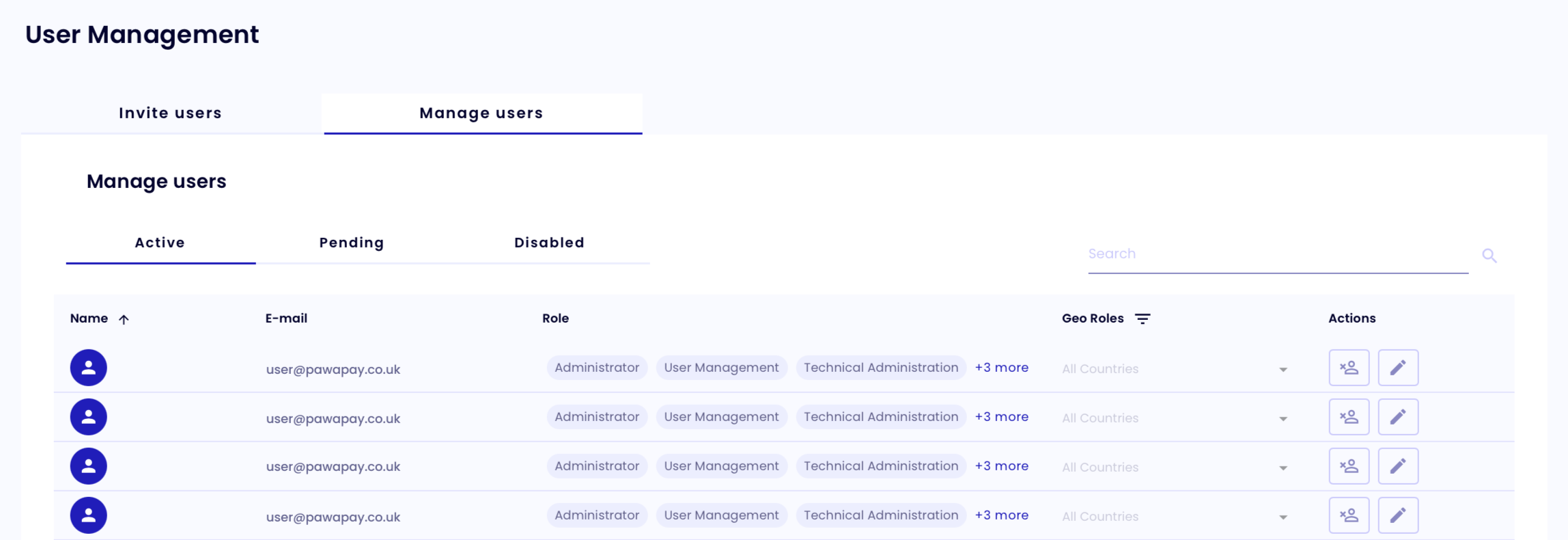
Users on the dashboard can be managed by pressing the tab "Manage users" on the User Management page.
This functionality is available to users with the User Management role. Read more about [User roles](/dashboard/user_management/user_roles).
You can navigate between active, pending, and disabled users by pressing on the respective tab.
 ## Active users
On the **Active users** tab, you can see the currently active users on the dashboard.
Your roles might affect which users you are able to see and manage.
### User Information
The following information is available for each user:
| Column | Description |
| --------- | ------------------------------------------------------------------------ |
| Name | The first and last name of the user. |
| E-mail | The email address of the user they were invited into the dashboard with. |
| Role | The roles the user has. |
| Geo Roles | The countries this user is limited to. |
| Actions | The actions that can be done for this user. |
If the user has many roles, you can see all of them by hovering on the "+ more" label.
### Changing users' country limitations
You can change the countries a user has access to by opening the "Geo Roles" dropdown and checking the countries they need.
## Active users
On the **Active users** tab, you can see the currently active users on the dashboard.
Your roles might affect which users you are able to see and manage.
### User Information
The following information is available for each user:
| Column | Description |
| --------- | ------------------------------------------------------------------------ |
| Name | The first and last name of the user. |
| E-mail | The email address of the user they were invited into the dashboard with. |
| Role | The roles the user has. |
| Geo Roles | The countries this user is limited to. |
| Actions | The actions that can be done for this user. |
If the user has many roles, you can see all of them by hovering on the "+ more" label.
### Changing users' country limitations
You can change the countries a user has access to by opening the "Geo Roles" dropdown and checking the countries they need.
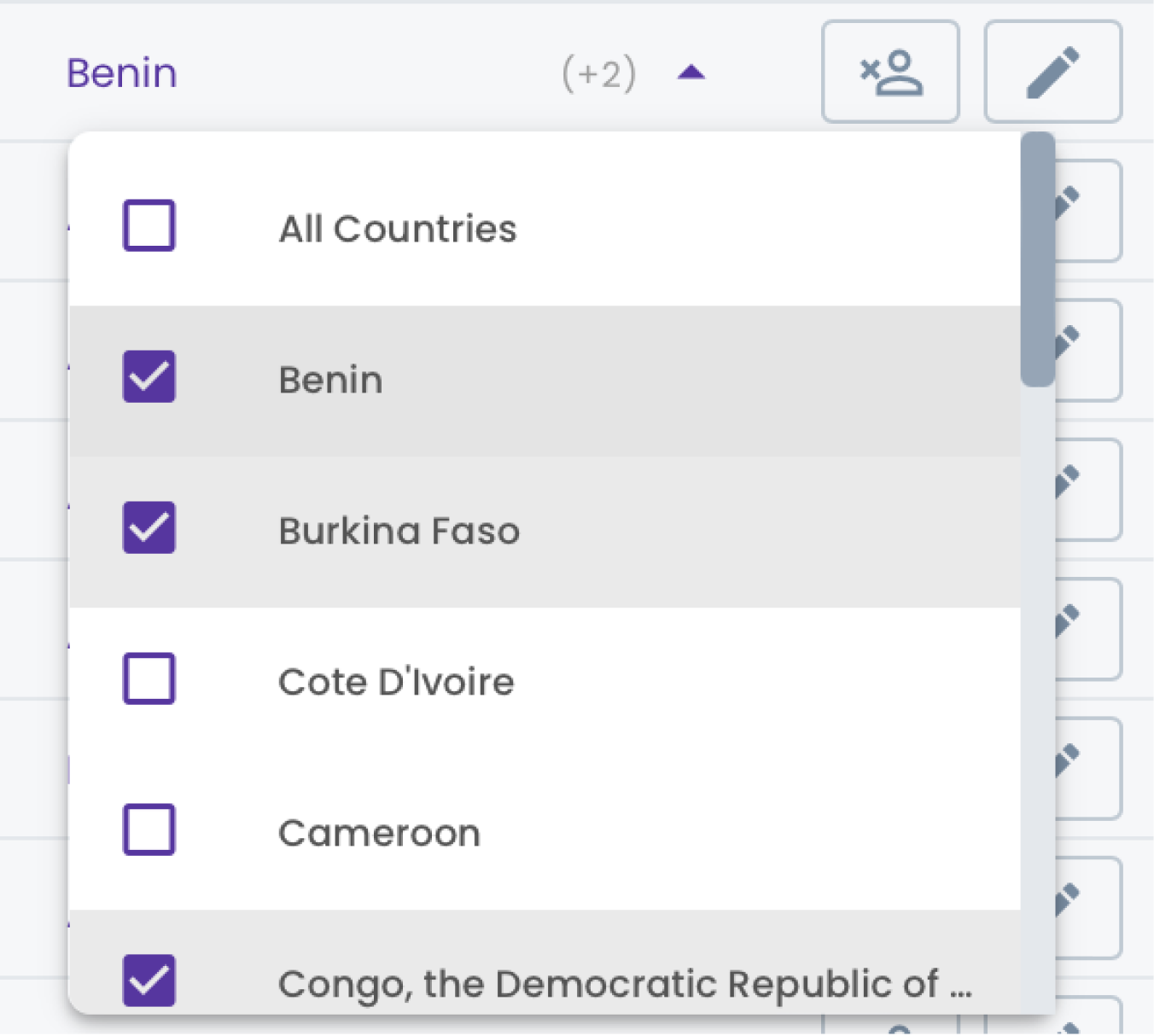 Changes to country limitations take effect immediately.
### Changing users' roles
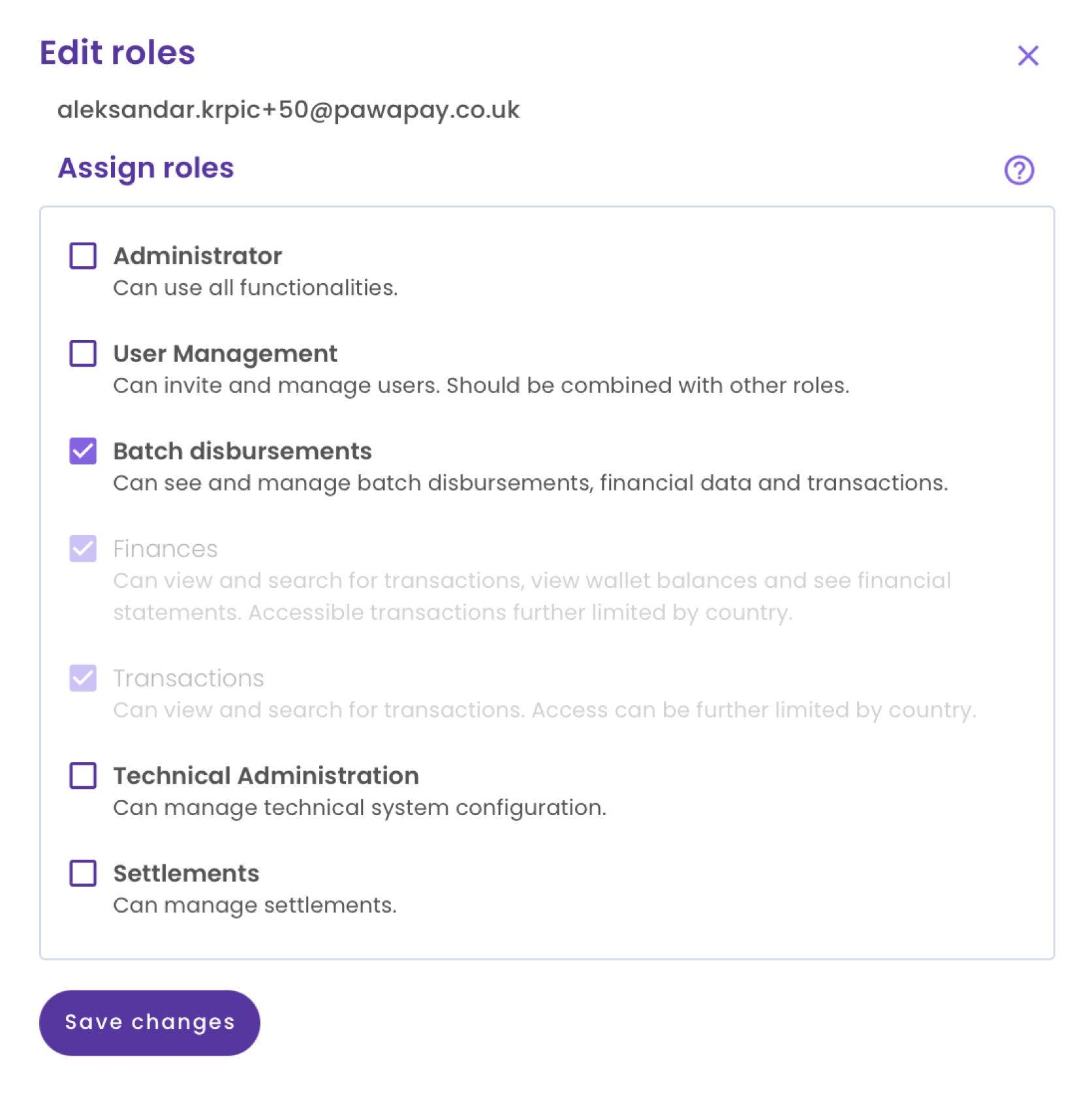
User roles can be changed by pressing the pencil icon in the user's "Actions" column.
Changes to country limitations take effect immediately.
### Changing users' roles
User roles can be changed by pressing the pencil icon in the user's "Actions" column.
 You can then make the changes needed and press "Save changes."
 ### Disabling users
You can disable a user by pressing the icon in the user's "Actions" column.
### Disabling users
You can disable a user by pressing the icon in the user's "Actions" column.
 You will be asked to confirm this action by pressing "Yes."
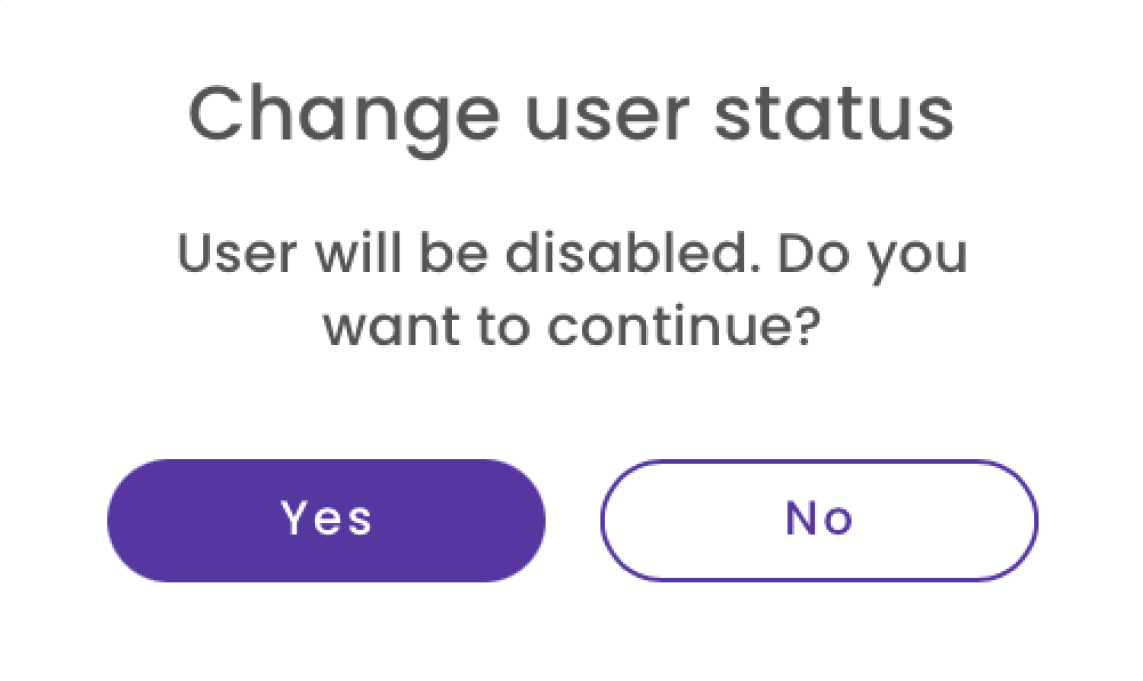 You can find the disabled user in the "Disabled" tab.
## Pending users
Users who have yet to activate their account from their invite email are found in the **Pending** tab.
You can change their role and country limitations just like for active users.
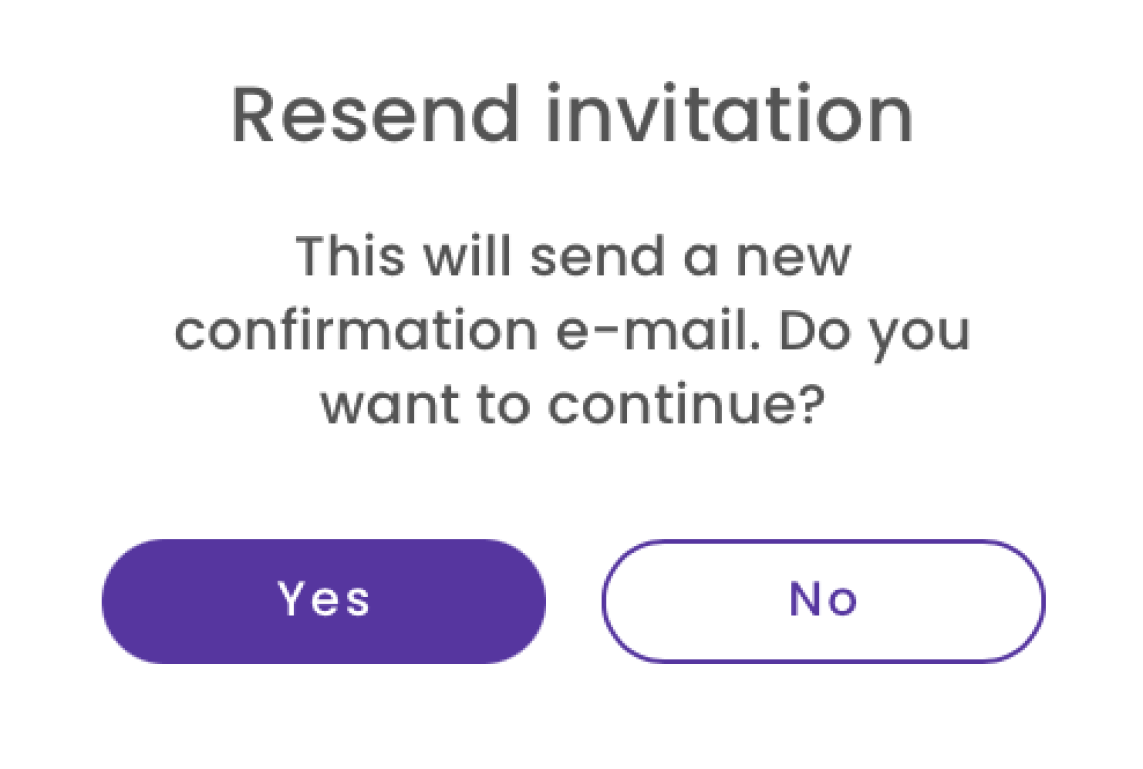
In case their invite has expired or is lost, you can resend the invitation email with a new activation link by pressing the "Resend invitation" button.
You will be asked to confirm this action by pressing "Yes."
You can find the disabled user in the "Disabled" tab.
## Pending users
Users who have yet to activate their account from their invite email are found in the **Pending** tab.
You can change their role and country limitations just like for active users.
In case their invite has expired or is lost, you can resend the invitation email with a new activation link by pressing the "Resend invitation" button.
You will be asked to confirm this action by pressing "Yes."
 You may also choose to delete the invitation by clicking on this icon under the Actions column:
 ## Disabled users
Users who have been disabled are found in the **Disabled** tab.
You can still change country limitations and roles for disabled users.
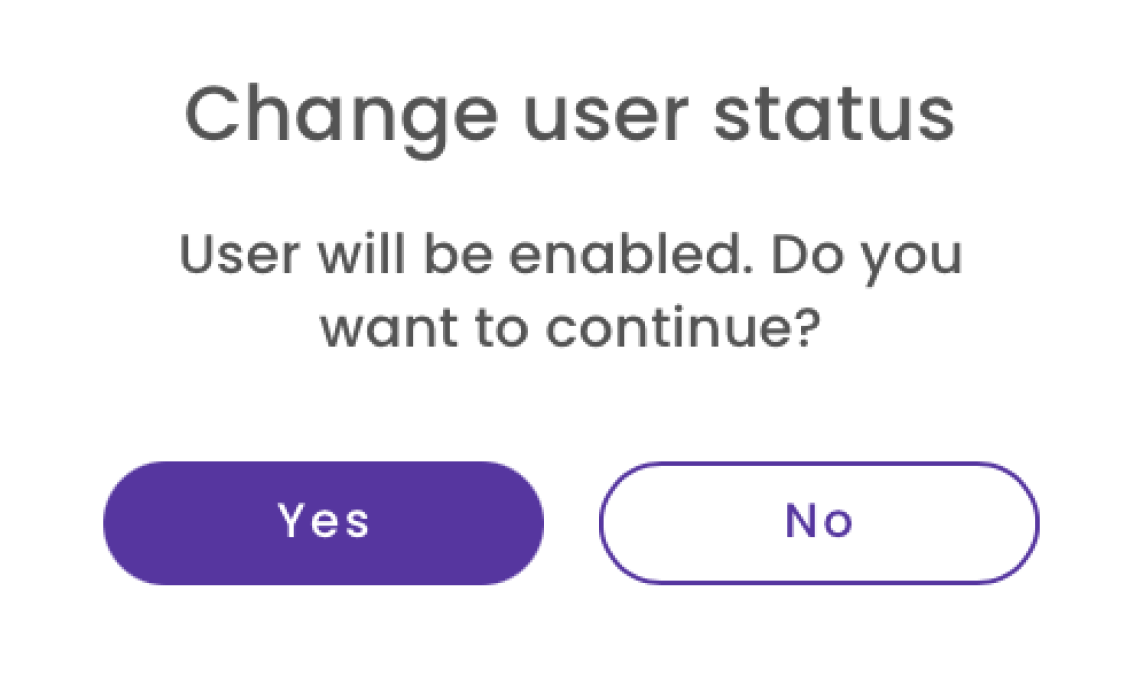
You can enable users by pressing on the icon in the user's "Actions" column.
## Disabled users
Users who have been disabled are found in the **Disabled** tab.
You can still change country limitations and roles for disabled users.
You can enable users by pressing on the icon in the user's "Actions" column.
 You will be asked to confirm this action by pressing "Yes."
 You can find the enabled user in the "Active" tab.