> ## Documentation Index
> Fetch the complete documentation index at: https://docs.pawapay.io/llms.txt
> Use this file to discover all available pages before exploring further.
# Wallets
On the PawaPay platform, all of your mobile money is stored in wallets. In most cases, wallets are issued per country and hold all your available mobile money in that country.
On the Wallets page, you can see the balances of all your wallets and view a breakdown of the transactions that have affected each wallet.
## Balance overview
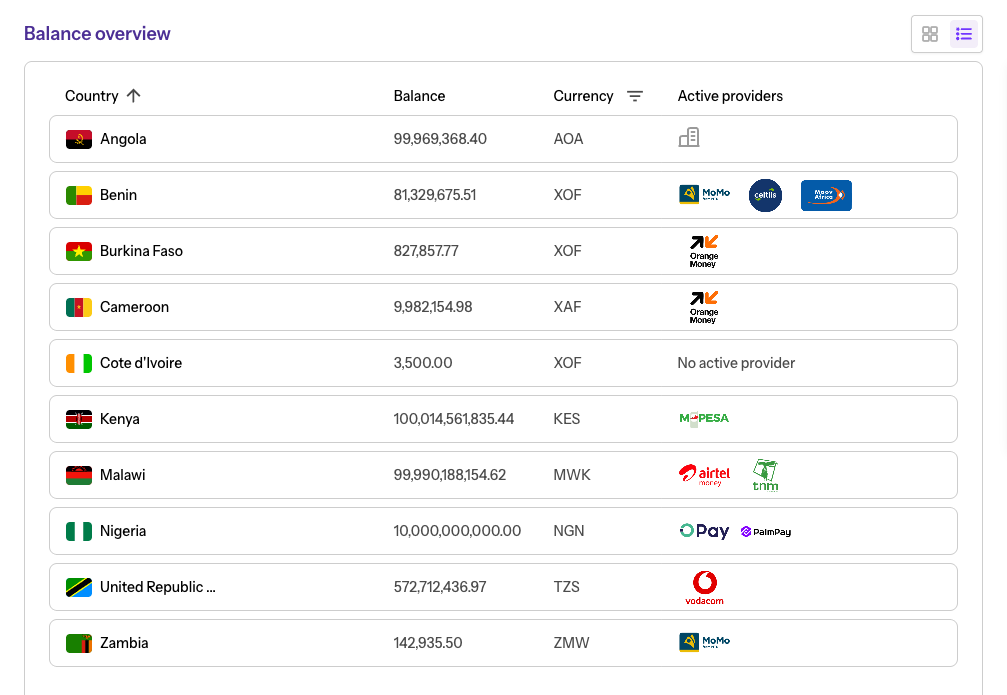
In the balance overview section, you can see each of your wallets and their:
* Country
* Current balance
* Currency
* Active providers (MMOs)
Click on a wallet to instantly view its breakdown in the Wallet breakdown panel.
 In normal circumstances, wallets are issued per country.\
If no provider is displayed for a wallet, then all payments in that country are processed through this wallet.
## Wallet breakdown
When you select a wallet, its breakdown is displayed automatically.
Choose a quick filter to quickly view yesterday, last week, or last month. Or select a custom date range using the date picker.
In normal circumstances, wallets are issued per country.\
If no provider is displayed for a wallet, then all payments in that country are processed through this wallet.
## Wallet breakdown
When you select a wallet, its breakdown is displayed automatically.
Choose a quick filter to quickly view yesterday, last week, or last month. Or select a custom date range using the date picker.
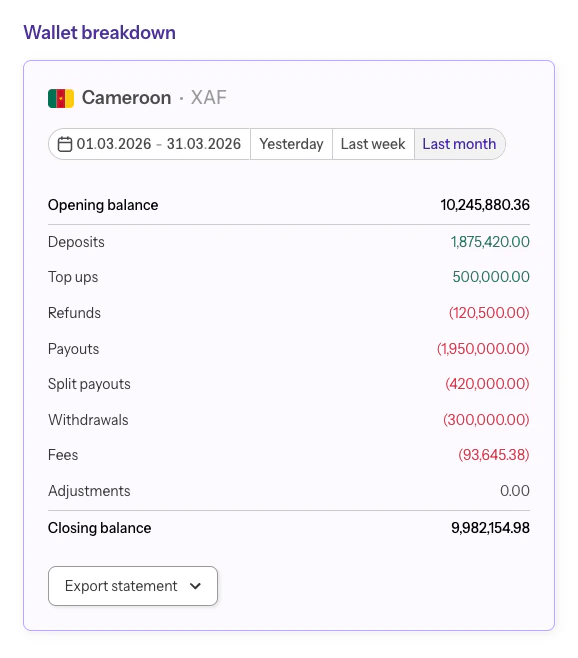 The wallet breakdown is displayed from **midnight to midnight** in the UTC time zone. You can select a period of up to **one month** at a time.
The breakdown shows how your wallet balance has changed over the selected period.
Together with the opening and closing balance, you will see the total value of:
* Deposits
* Split Deposits
* Payouts
* Split Payouts
* Remittances
* Fees
* Withdrawals
* Top ups
* Adjustments
* Compensations
* Uncategorized
Values are displayed as positive (money in) and negative (money out).
### Export wallet breakdown
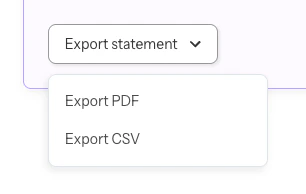
You can export the breakdown as a CSV or PDF file at any time by selecting "Export Statement".
The wallet breakdown is displayed from **midnight to midnight** in the UTC time zone. You can select a period of up to **one month** at a time.
The breakdown shows how your wallet balance has changed over the selected period.
Together with the opening and closing balance, you will see the total value of:
* Deposits
* Split Deposits
* Payouts
* Split Payouts
* Remittances
* Fees
* Withdrawals
* Top ups
* Adjustments
* Compensations
* Uncategorized
Values are displayed as positive (money in) and negative (money out).
### Export wallet breakdown
You can export the breakdown as a CSV or PDF file at any time by selecting "Export Statement".