> ## Documentation Index
> Fetch the complete documentation index at: https://docs.pawapay.io/llms.txt
> Use this file to discover all available pages before exploring further.
# Settlements
## Settlement Preferences Setup
To receive settlements, PawaPay requires the following information from you:
* Where should we send your settlement funds?
* How frequently would you like to be settled?
* Should we retain some funds in your PawaPay wallet?
In addition the total settlement amount must be valued over 50 USD for Local settlements and 100 USD for cross-border settlements.
Let's break down the steps.
### Where should we send your settlement funds?
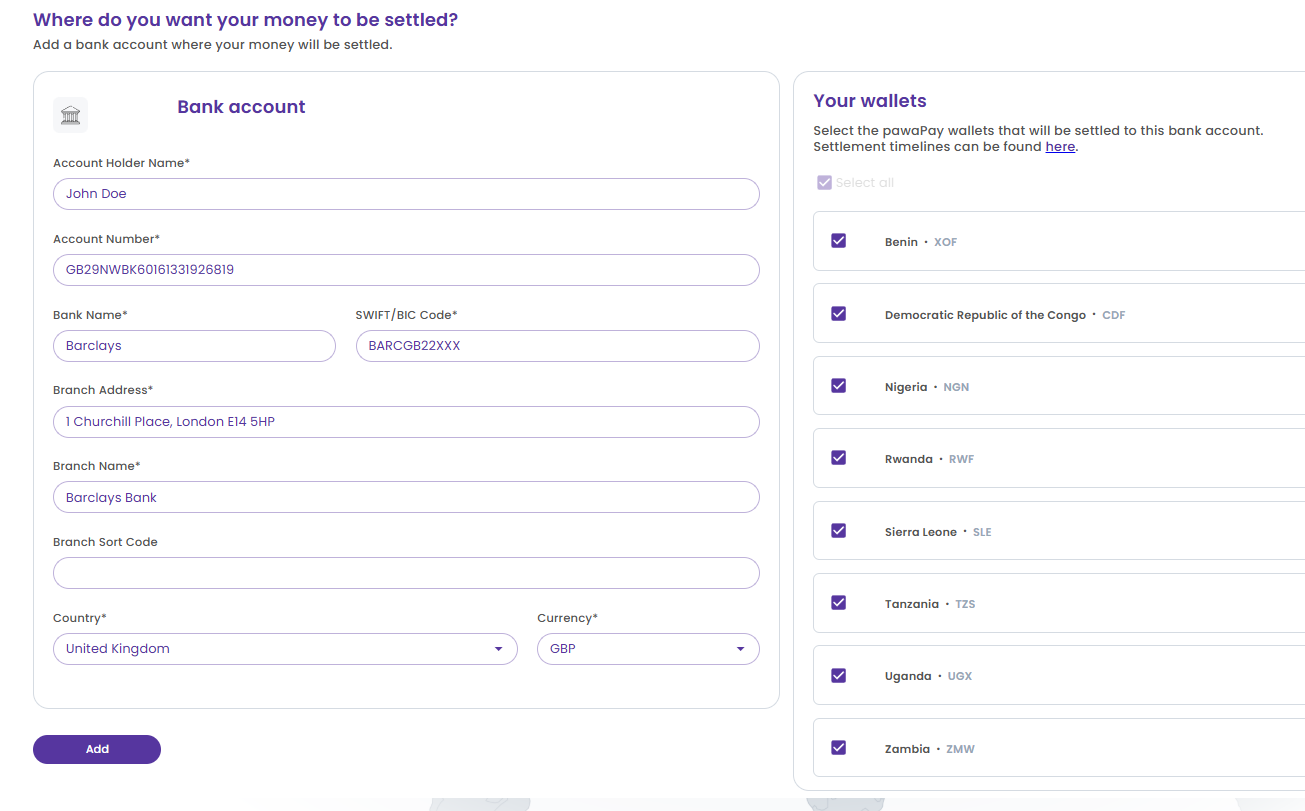
You’ll need to configure your bank account details in the format below and link them to the appropriate PawaPay wallets.
* For local settlements, we support local (African) currency settlements into bank accounts in countries PawaPay processes your payments.
* For cross-border settlements, we support EUR, USD, and GBP settlements to bank accounts outside the countries where PawaPay processes your payments.
You can choose to link some or all PawaPay wallets to a major currency account.
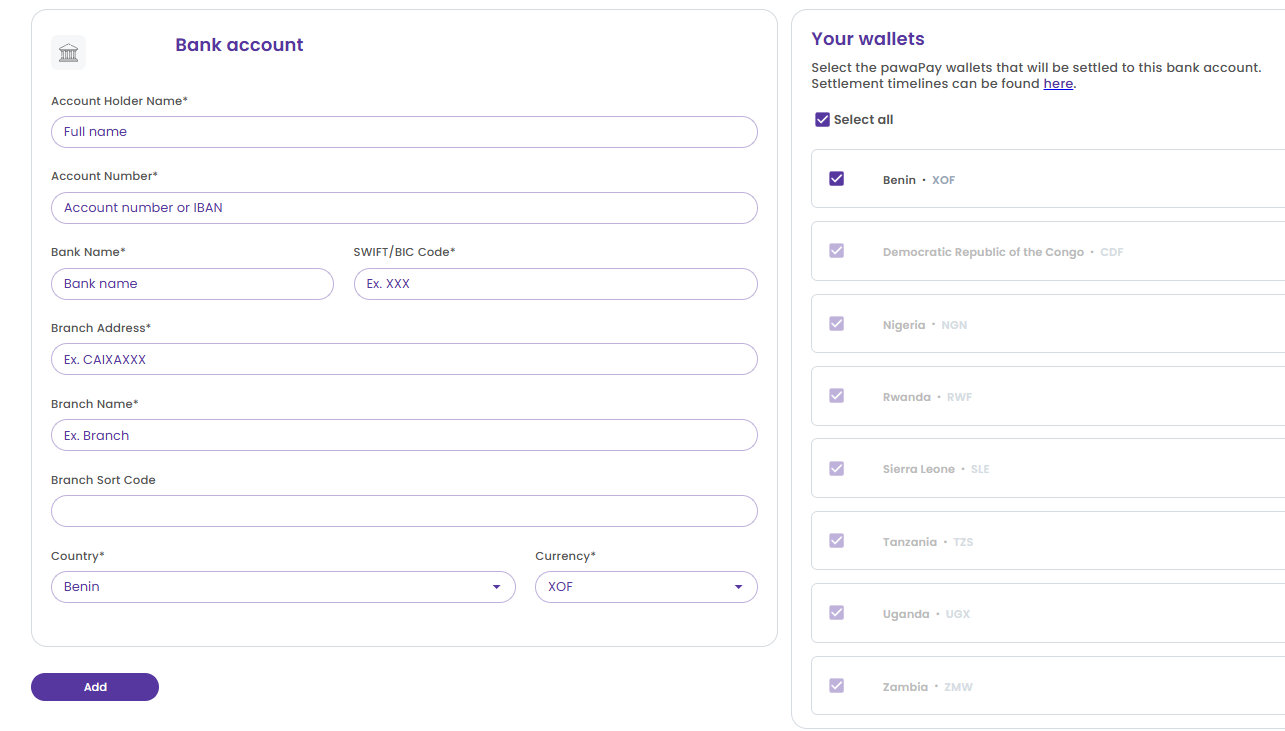
 Any remaining wallets must be linked to a local currency account from the same country. In such cases the only available options for *Country* and *Currency* will match the unmapped PawaPay wallet information.
 We currently allow only one EUR, USD, or GBP account to be added. All cross-border settlements from your configured wallets will be in the same currency.
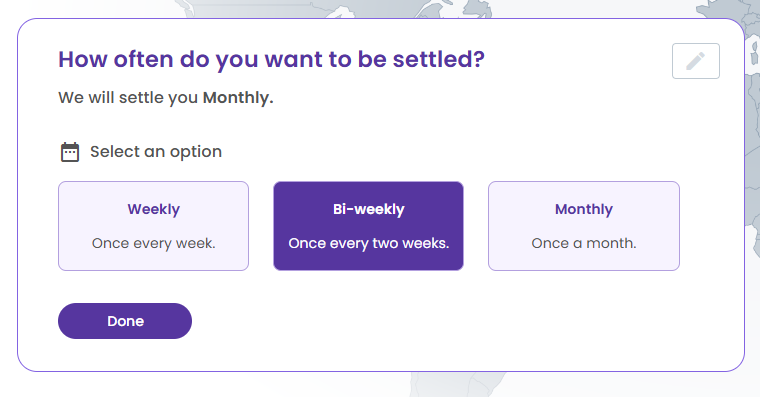
### How frequently should we settle?
You can choose to be settled either *weekly*, *biweekly* or *monthly*. Your preferred frequency can be changed at any time.
We currently allow only one EUR, USD, or GBP account to be added. All cross-border settlements from your configured wallets will be in the same currency.
### How frequently should we settle?
You can choose to be settled either *weekly*, *biweekly* or *monthly*. Your preferred frequency can be changed at any time.
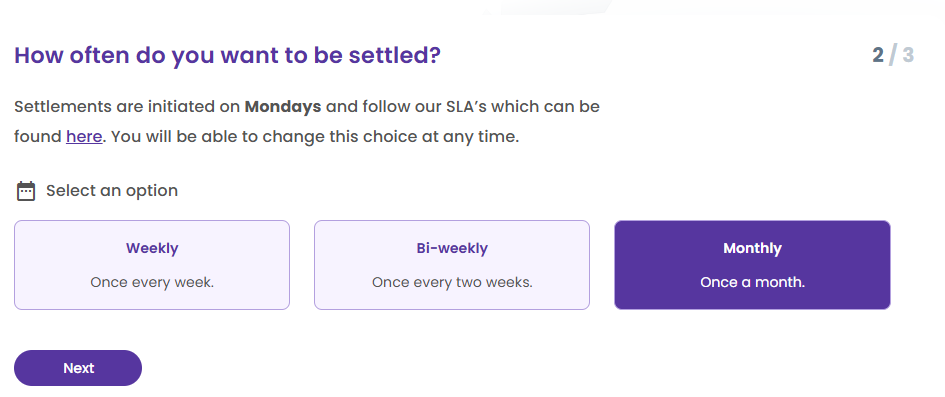 The cut off time for transactional value to be included in a settlement is always at Sunday 23:59:59 UTC.
### Should we retain some funds in your PawaPay wallet?
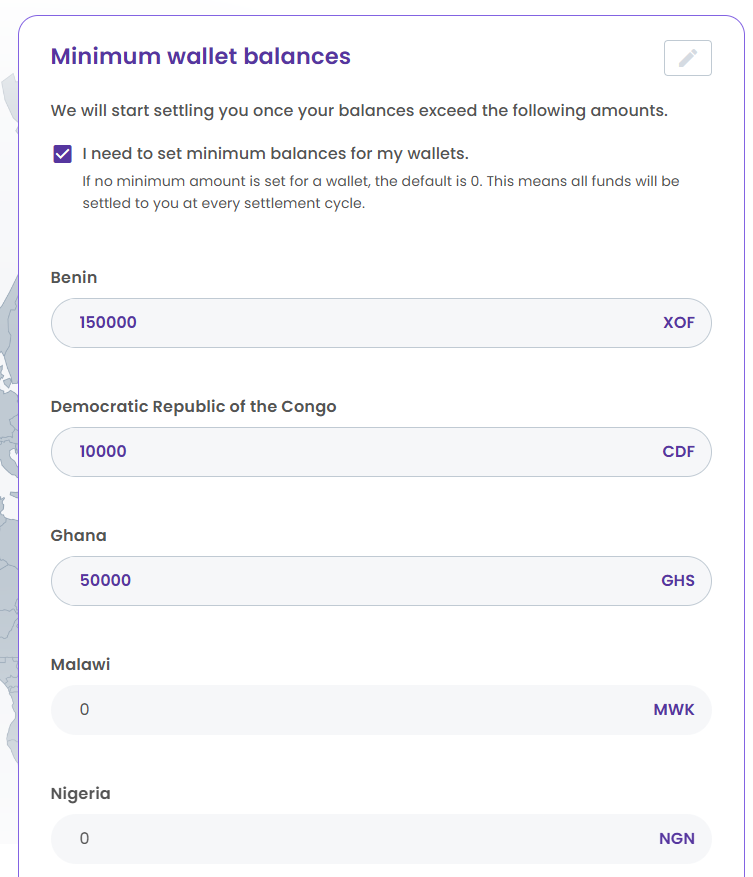
You can set minimum balances for your PawaPay wallets to ensure those amounts remain unaffected by settlements. This means any amount exceeding your specified minimums will be settled to your configured bank account.
Each wallet can have its own unique minimum balance, and you can adjust these minimum amounts at any time.
You may choose to skip this step if you want all available funds settled each time.
The cut off time for transactional value to be included in a settlement is always at Sunday 23:59:59 UTC.
### Should we retain some funds in your PawaPay wallet?
You can set minimum balances for your PawaPay wallets to ensure those amounts remain unaffected by settlements. This means any amount exceeding your specified minimums will be settled to your configured bank account.
Each wallet can have its own unique minimum balance, and you can adjust these minimum amounts at any time.
You may choose to skip this step if you want all available funds settled each time.
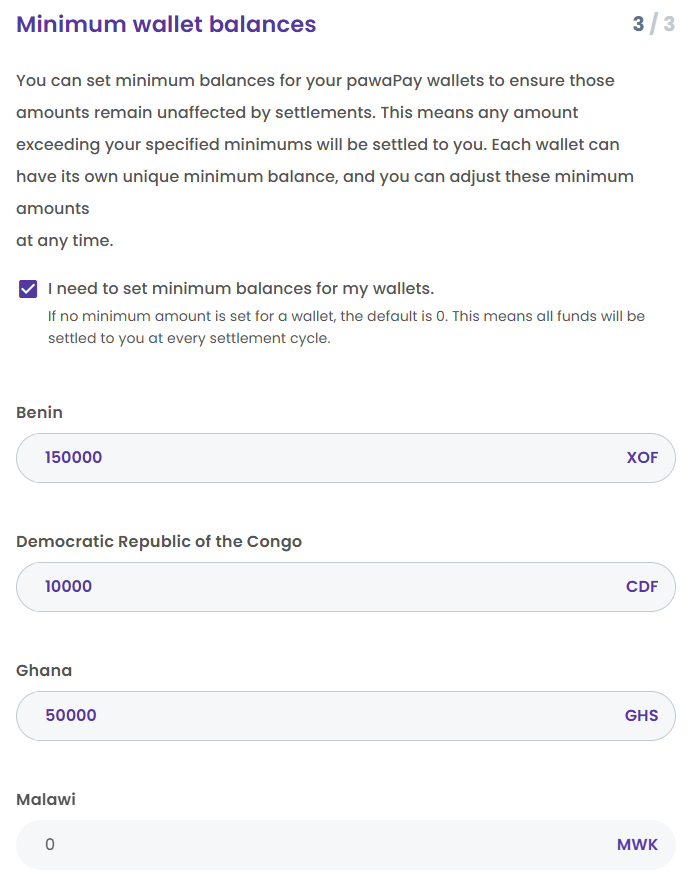 Once you complete these three steps, you’ll see an overview of your set up, allowing you to review and make changes if needed.
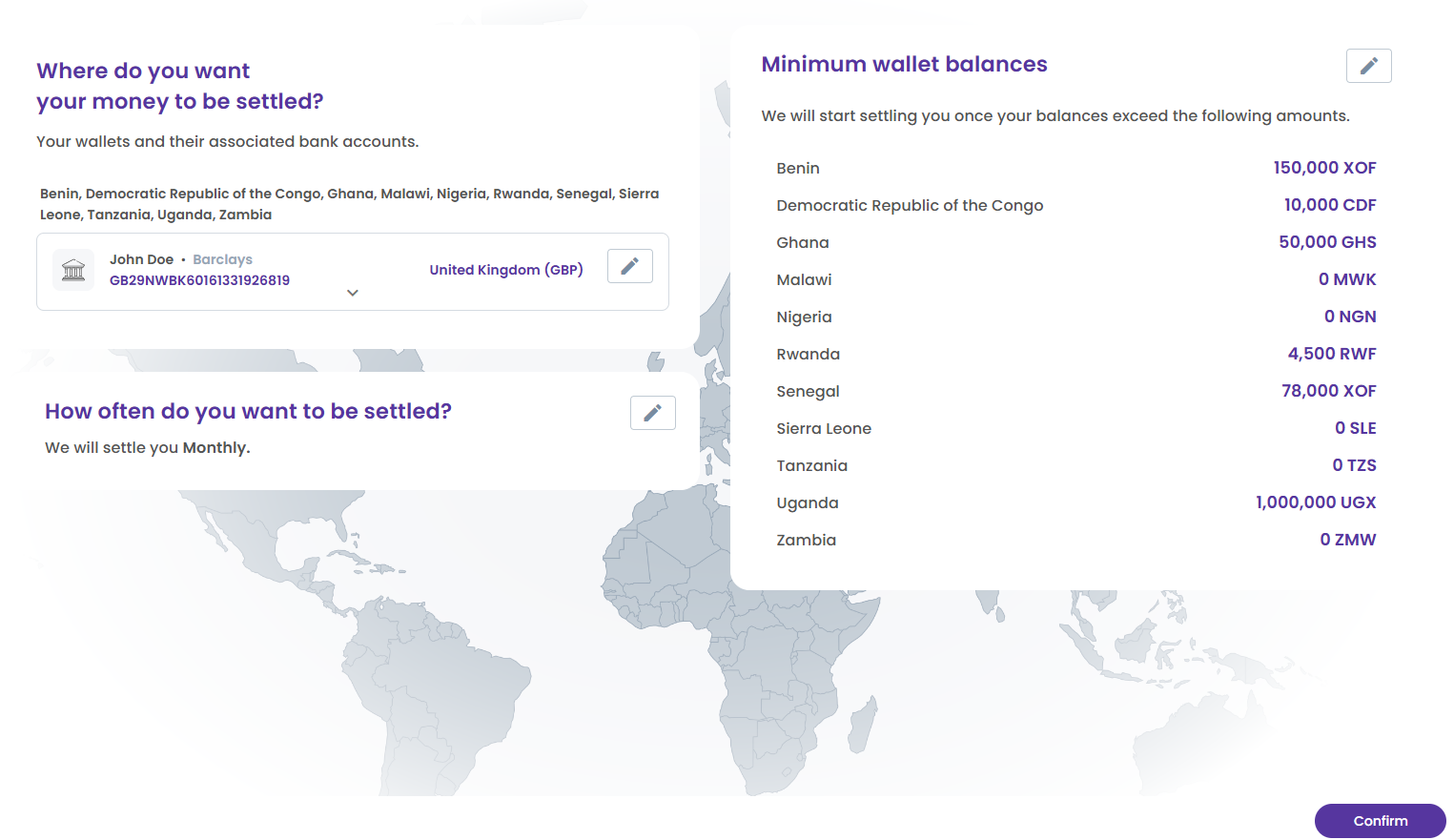 When you're ready, select ‘Confirm’ to activate your settlement configuration. After this, you’re all set to start receiving settlements!
## Settlements Overview
Once you've completed the settlement configuration, you'll gain access to the Settlements overview. This page provides information on all past and current settlements, including [timelines](https://pawapay.webflow.io/settlement-timelines) and the scheduled time for your next settlement.
Your settlement can have one of four statuses:
* In progress
* Completed
* Cancelled
* Skipped
Let’s take a closer look at each status.
### In progress
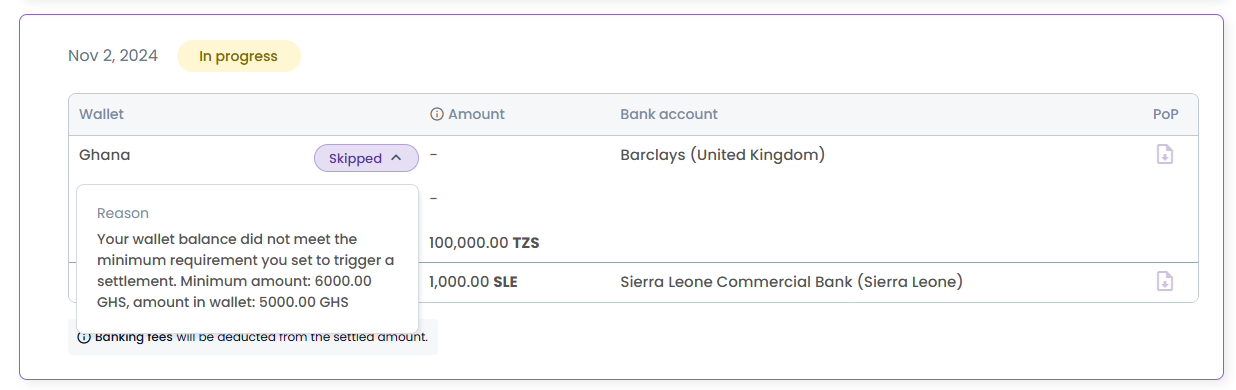
When a settlement is *In progress*, you'll see all affected PawaPay wallets, the amounts deducted from each, the destination bank account(s), and any wallets that were skipped.
When you're ready, select ‘Confirm’ to activate your settlement configuration. After this, you’re all set to start receiving settlements!
## Settlements Overview
Once you've completed the settlement configuration, you'll gain access to the Settlements overview. This page provides information on all past and current settlements, including [timelines](https://pawapay.webflow.io/settlement-timelines) and the scheduled time for your next settlement.
Your settlement can have one of four statuses:
* In progress
* Completed
* Cancelled
* Skipped
Let’s take a closer look at each status.
### In progress
When a settlement is *In progress*, you'll see all affected PawaPay wallets, the amounts deducted from each, the destination bank account(s), and any wallets that were skipped.
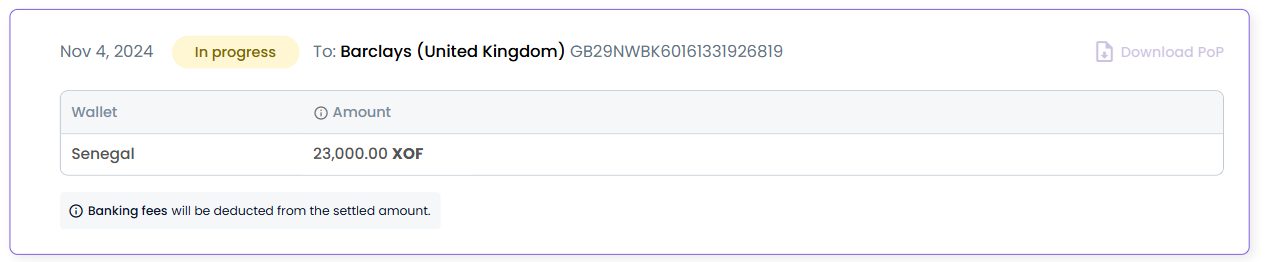 If you’re receiving settlements into multiple accounts, we’ll display how much from each wallet goes to each account, along with the Name and Country of each bank account.
FX rates used to convert your local currency amounts are not displayed until the settlement is complete.
If you’re receiving settlements into multiple accounts, we’ll display how much from each wallet goes to each account, along with the Name and Country of each bank account.
FX rates used to convert your local currency amounts are not displayed until the settlement is complete.
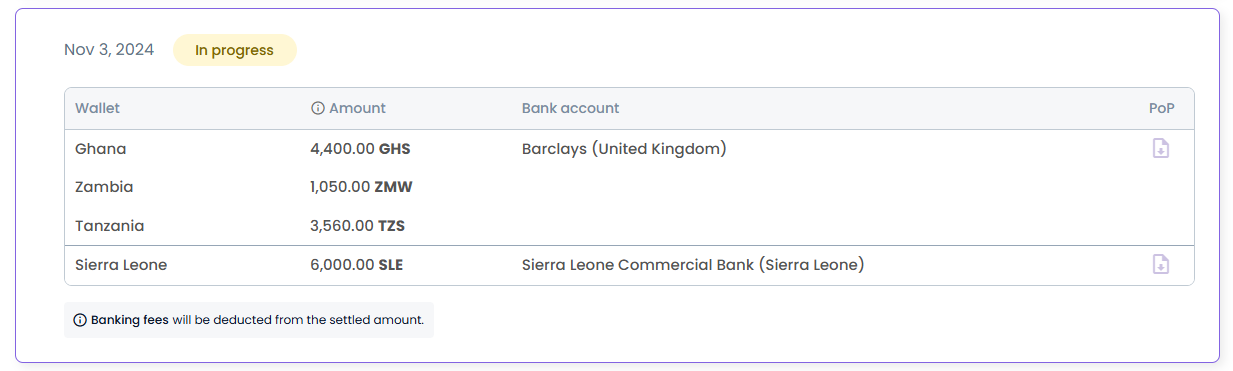 If any of your PawaPay wallets were skipped in the settlement, you can view the reason by clicking on the "Skipped" status button.
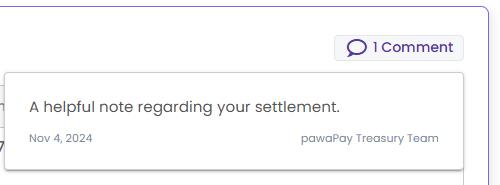
 Occasionally, the PawaPay Treasury team may leave comments related to your settlement.These can be found in the top-right corner of each settlement block.
 ### Completed
When a cross-border settlement is *Completed* by PawaPay, you’ll be able to view the total amount settled (before banking fees), the exchange rate used, and the destination bank account.
A proof of payment (PoP) for the transaction is also attached.
Any banking fees will be deducted from the settled amount. The amounts displayed in our dashboard reflect the totals before banking fees are applied.
### Completed
When a cross-border settlement is *Completed* by PawaPay, you’ll be able to view the total amount settled (before banking fees), the exchange rate used, and the destination bank account.
A proof of payment (PoP) for the transaction is also attached.
Any banking fees will be deducted from the settled amount. The amounts displayed in our dashboard reflect the totals before banking fees are applied.
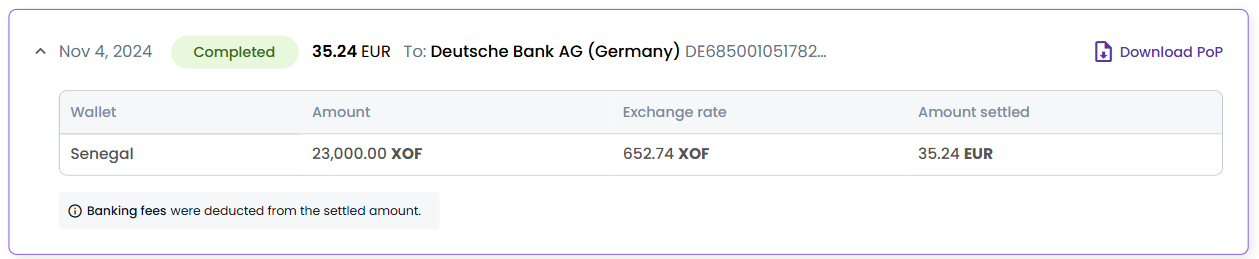 When a local settlement is completed by PawaPay, you’ll see the amount settled (before banking fees), the destination account, and have the option to download the proof of payment (PoP).
 ### Cancelled
If a settlement is *Cancelled*, funds are refunded to your PawaPay wallets immediately. Our Treasury team will leave a comment explaining the reason for cancellation.
### Cancelled
If a settlement is *Cancelled*, funds are refunded to your PawaPay wallets immediately. Our Treasury team will leave a comment explaining the reason for cancellation.
 ### Skipped
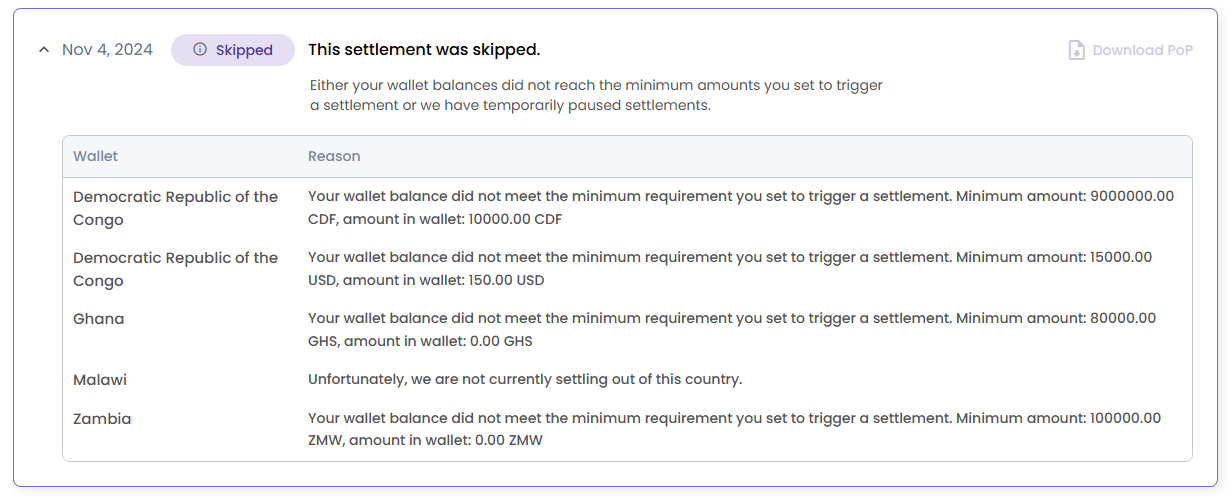
If an entire settlement is *Skipped*, none of your PawaPay wallets were eligible for settlement. This could be because the minimum required amounts you've set for your wallets weren't met, or because PawaPay has temporarily suspended settlements in a specific country.
### Skipped
If an entire settlement is *Skipped*, none of your PawaPay wallets were eligible for settlement. This could be because the minimum required amounts you've set for your wallets weren't met, or because PawaPay has temporarily suspended settlements in a specific country.
 ## Manage Settlement Preferences
The Configuration tab allows you to view and edit your settlement preferences. It’s similar to the initial setup, with one key difference: **you can’t remap existing PawaPay wallets to bank accounts in a new currency**.
## Manage Settlement Preferences
The Configuration tab allows you to view and edit your settlement preferences. It’s similar to the initial setup, with one key difference: **you can’t remap existing PawaPay wallets to bank accounts in a new currency**.
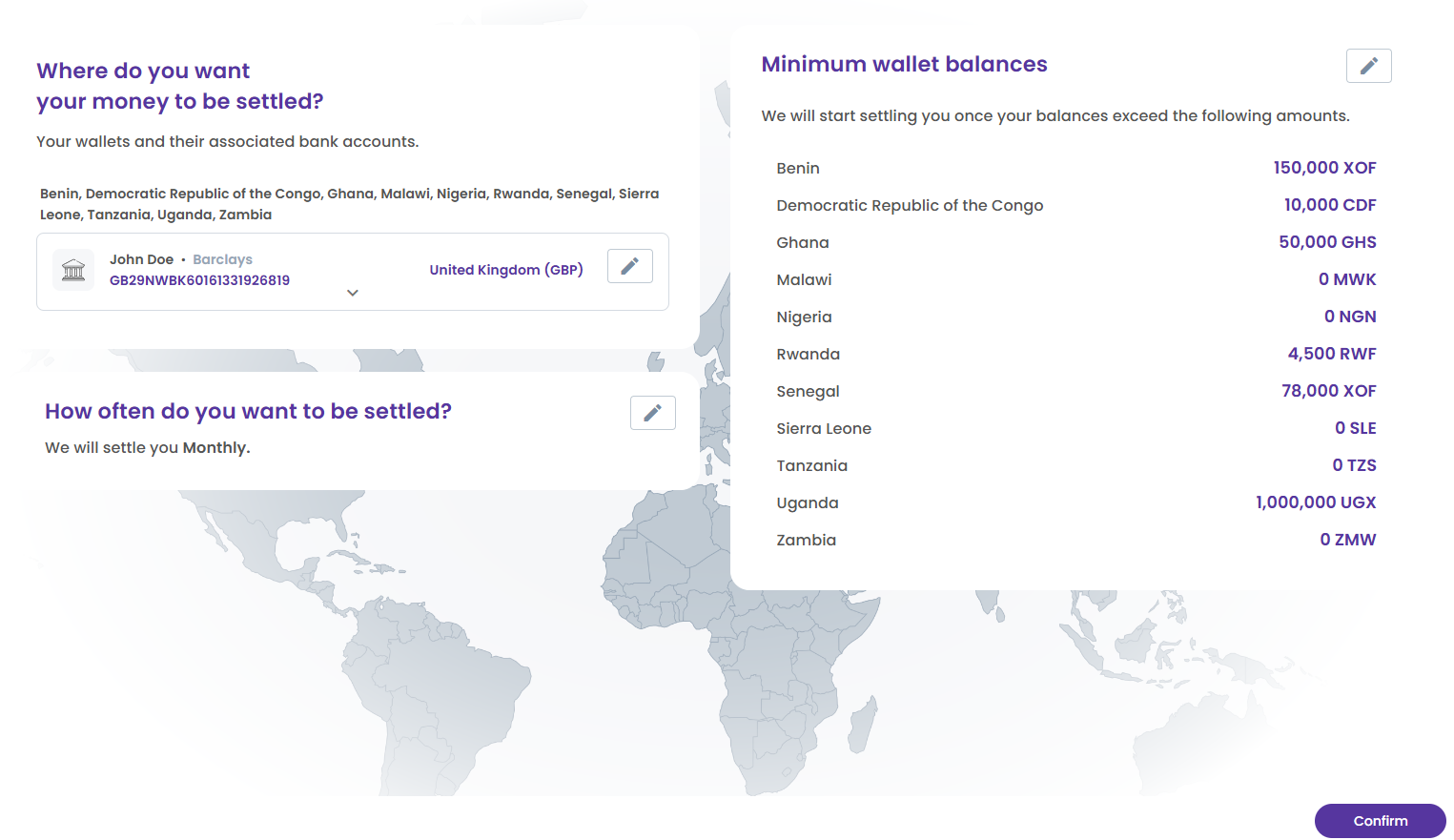 However, you can update the details of an existing bank account — except its *Country* and *Currency* — by selecting the *Edit* button (the pencil icon).
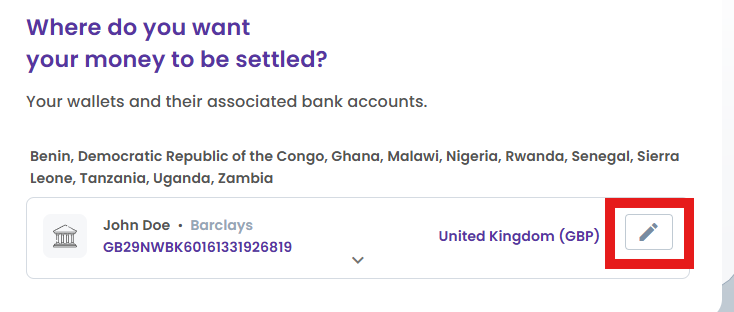 When you expand into new countries, we’ll prompt you to specify how you would like us to settle your new wallet(s).
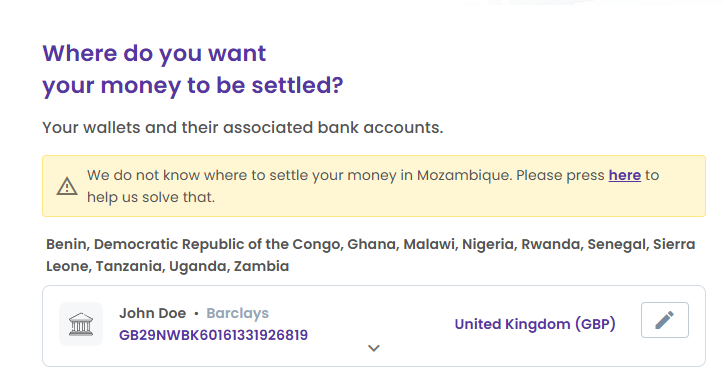 You can choose to map the new wallet to your existing cross-border bank account, or add a new local one.
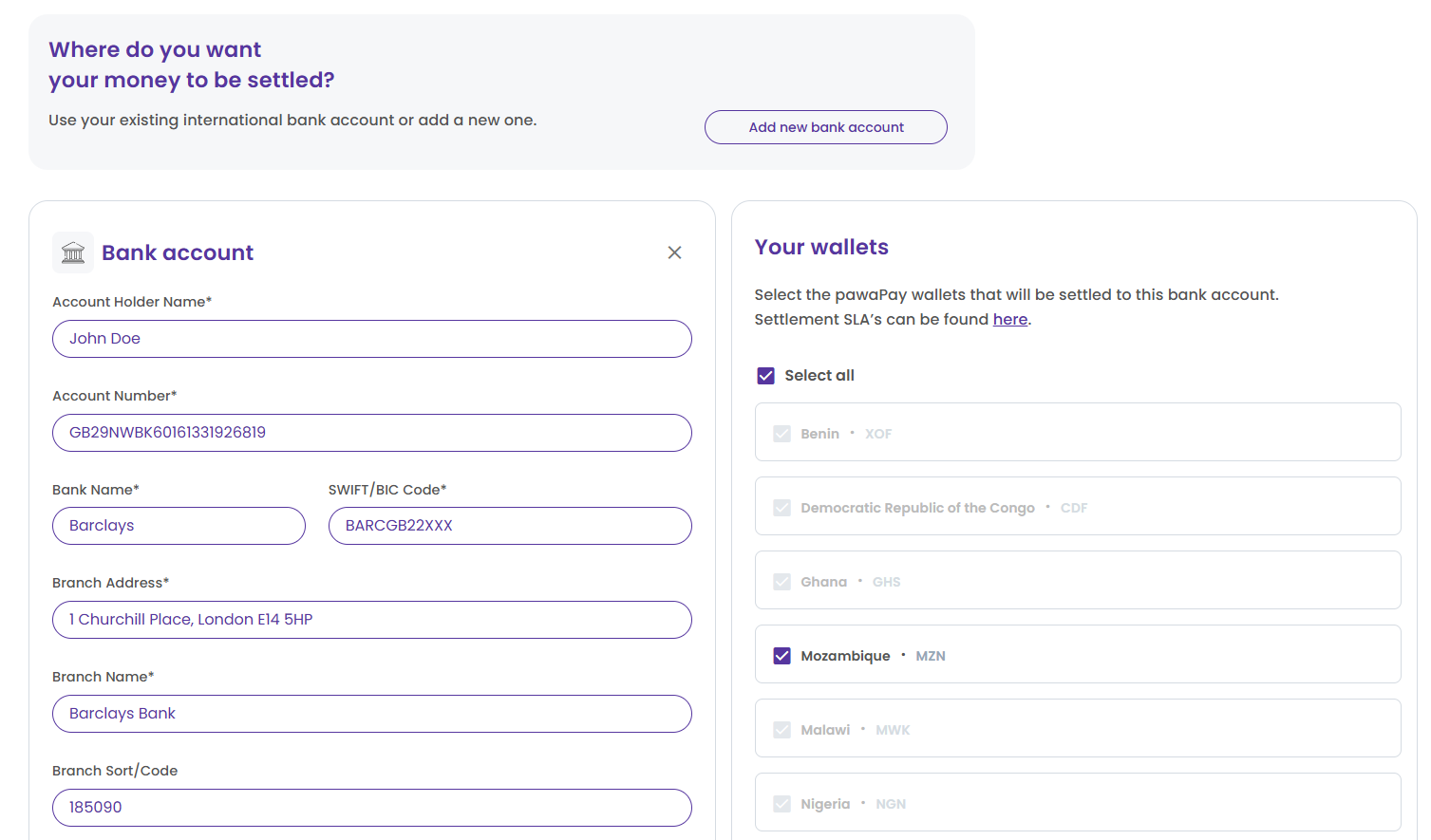 You can change the frequency of your settlements.
 Or any minimum amounts you wish to keep in your PawaPay wallets.